Take your community offline for a while, then open it again. Nothing is deleted.
Any Community Admin can do this, not only the owner.
What pausing does
While your community is paused, members see a page that says "This community is taking a break." They can't sign in or post. All content, members and settings stay as they are.
Pause
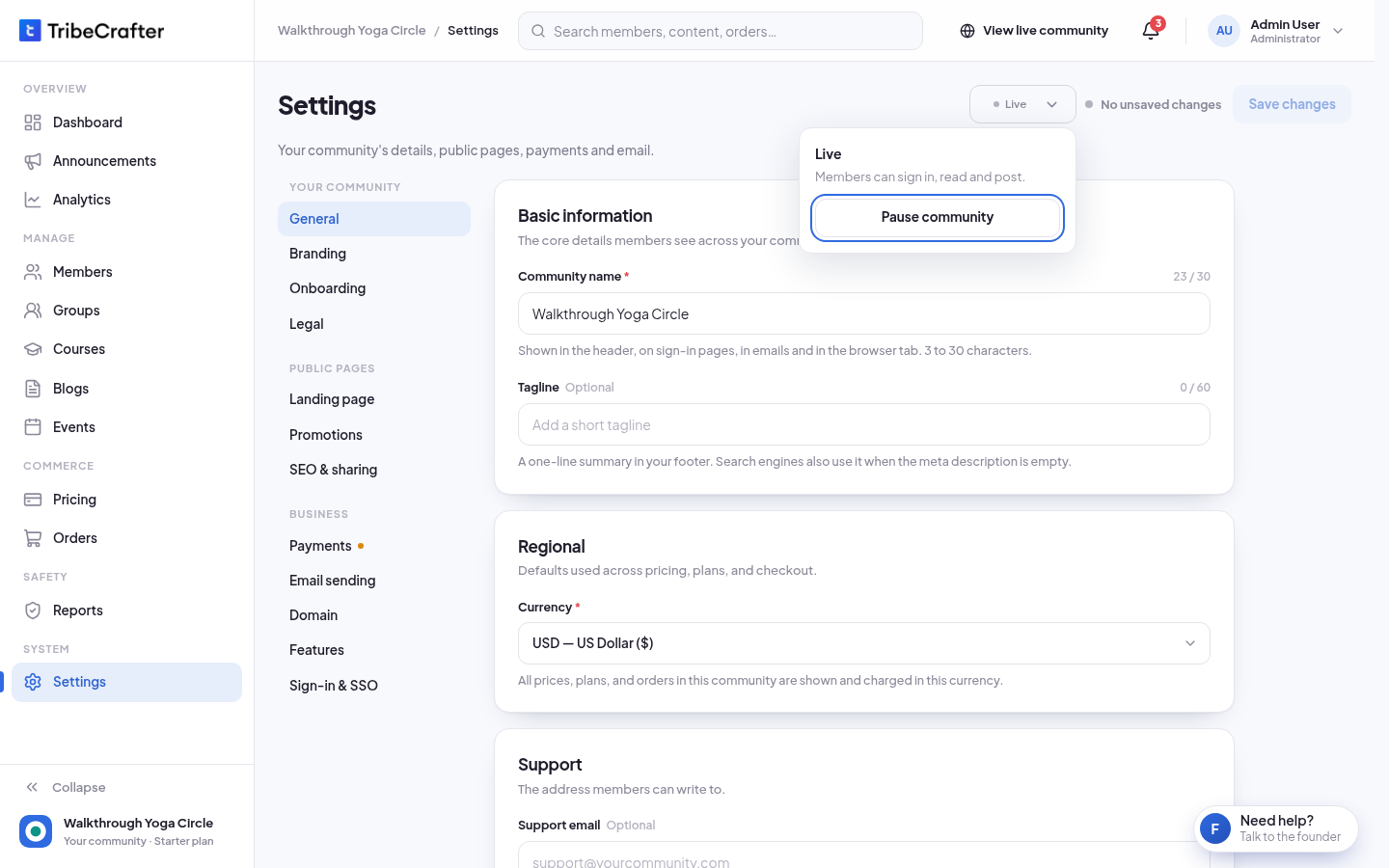
- In Studio, go to Settings.
- At the top right, click the status label Live.
- Click Pause community.
- In "Pause community?", click Pause community again. You see "Community paused".
Resume
- In Settings, click the status label Paused.
- Click Resume community, then Resume. You see "Community resumed. Members can sign in again."
Visitors can see the paused page for up to a minute after you resume.
The status labels
| Label | Meaning |
|---|---|
| Setting up | Not live yet. Visitors see a holding page. It goes live by itself when the 6 go-live checks on the Dashboard are done. |
| Going live | All go-live checks are done. It goes live in a moment. |
| Live | Members can sign in, read and post. |
| Paused | Members see the paused page. |
The panel says "Paused by you" even when another admin paused the community.