The 6 checks your community needs before it goes live, where to do each one, and what happens after.
Your community goes live by itself when all 6 checks are done. There is no Go live button. Until then, people who open your community see a holding page.
You don't need a plan, a product or Stripe to go live. You can add those later.
Find the checklist
In Studio, go to Dashboard. The Before you go live card lists the 6 checks. The badge at the top right shows how many are left ("1 left"). The next open check is highlighted.
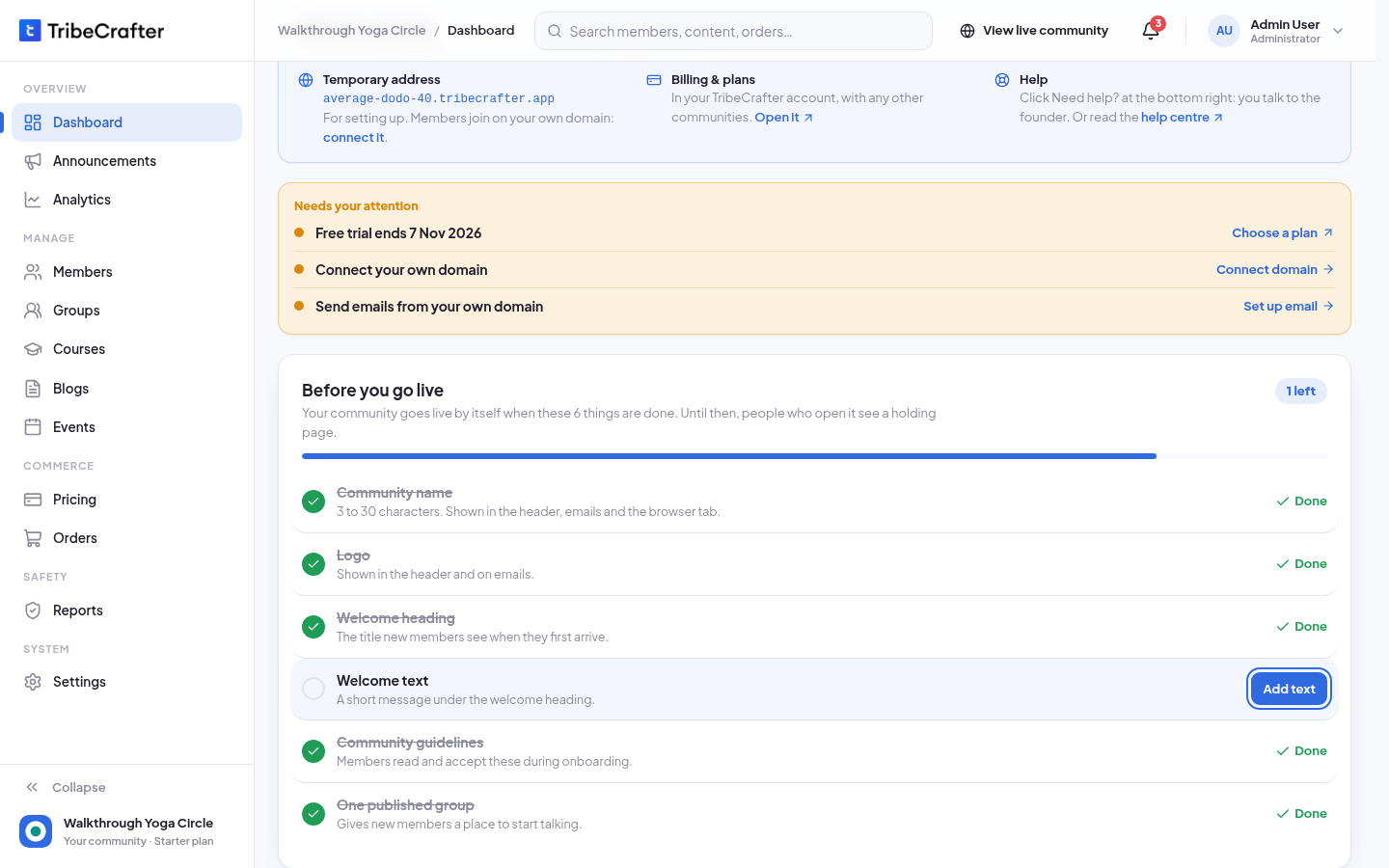
The 6 checks
| Check | Button | Where you do it | What it needs |
|---|---|---|---|
| Community name | Add name | Settings → General | 3 to 30 characters. Already done on a new community: Studio uses the name you typed in your TribeCrafter account. |
| Logo | Upload logo | Settings → Branding | A logo image. The page recommends a square PNG, at least 512 × 512 px. |
| Welcome heading | Add heading | Settings → Onboarding | The title new members see first. Up to 50 characters. |
| Welcome text | Add text | Settings → Onboarding | A short message under the heading. Plain text, up to 300 characters. |
| Community guidelines | Write guidelines | Settings → Onboarding | The rules members read and accept when they join. A short first version is fine. |
| One published group | Create group | Groups → Create group | At least 1 group with the status Published. |
Tick off a check
- On the Dashboard, click the button next to the check. Studio opens the right screen.
- Fill in the field.
- Click Save changes. You see "Changes saved successfully." and then " done.", for example "Welcome text done."
For the group check, publish the group: you see "Group published. Members can see it now." To start with a free group, see Create a group.
The checklist follows you
While a check is open, a Go live · N left button stays at the bottom right of every other Studio screen.
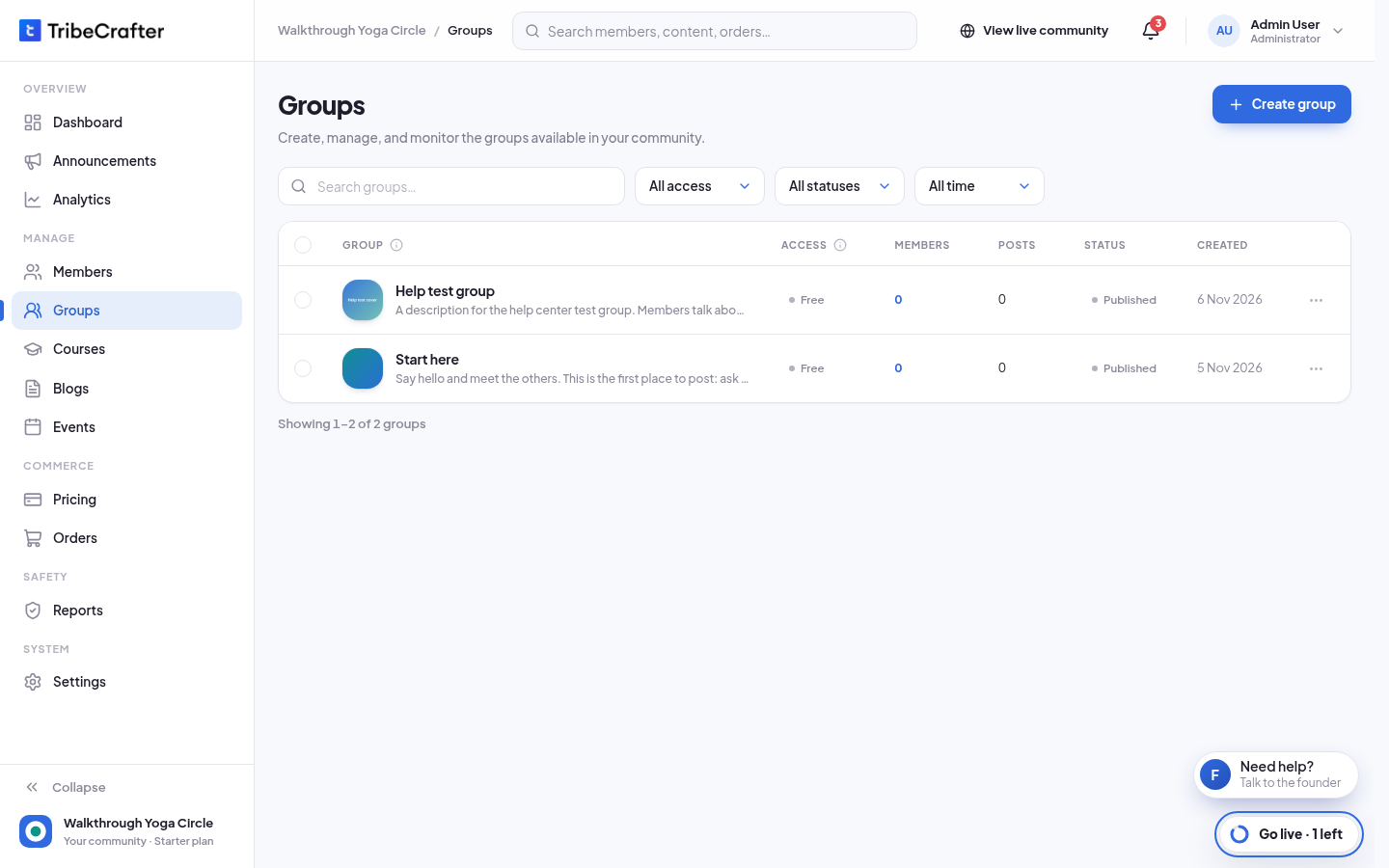
- Click Go live · N left. The Go-live checklist panel opens with "N of 6 done".
- Click the arrow next to an open check to go to its screen. On that screen the panel says "You're here: save to tick it off".
- Click the minus button at the top of the panel to fold it back into the button.
When all 6 are done
- Your community goes live in a moment. Anyone with the link can see it and join.
- With no members yet, the Dashboard shows "Your community is live 🎉" with your address and a Copy link button.
- In Settings, the status at the top right shows Live.
Your community stays live after that. If you later remove the logo, empty the welcome heading, the welcome text or the guidelines, or unpublish your last group, it does not go offline. The Before you go live card comes back on the Dashboard with the open check. Its text still says people see a holding page, but they don't: your community stays live. Fix the check to hide the card again.
To take your community offline for a while, see Pause and resume your community.
Not needed to go live
- A plan or a product, and Stripe. You need Stripe only to publish something paid.
- Your own domain, a landing page, or members.
These are the next steps. See "What to do next" in Start here: set up your community.
If something goes wrong
| You see | What to do |
|---|---|
| "Community name must be at least 3 characters." | Use 3 to 30 characters in Settings → General. |
| "Please upload a cover image." when you publish a group | Add a Cover image to the group. A group needs one to publish. |
| "Write at least 50 characters, so members know what it's for." | Make the group Description longer. |
| A check does not tick | Check that you clicked Save changes and saw "Changes saved successfully.". For the group, check that its status is Published, not Draft. |