Choose how your community shows in Google results and in link previews, and whether search engines can list it.
Any Community Admin can do this. Every field is optional. If you leave one empty, your community uses another text or picture (see the table).
Steps
- In Studio, go to Settings → SEO & sharing.
- Fill in the fields you want.
- Click Save changes.
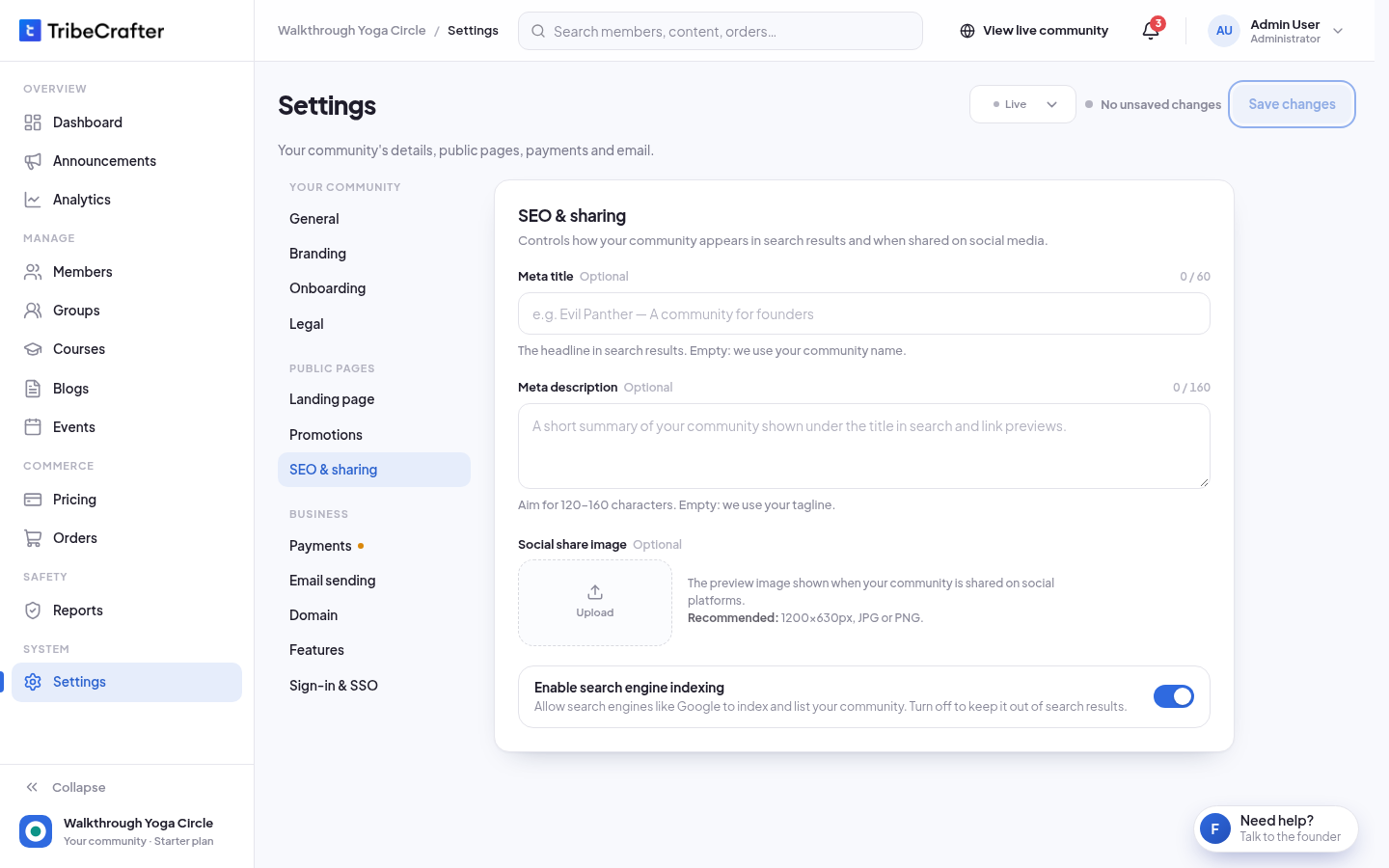
| Field | What it does | If empty |
|---|---|---|
| Meta title (up to 60 characters) | The headline in search results. | Your community name. |
| Meta description (up to 160 characters; aim for 120 to 160) | The text under the headline in search results. | Your tagline. If the tagline is short (under 30 characters), a longer text from your community is used. |
| Social share image (1200 × 630 px, JPG or PNG) | The picture shown when your community is shared on social platforms. | The hero image from Landing page, then your logo. |
| Enable search engine indexing (on by default) | Lets Google and other search engines list your community. |
Keep your community out of search results
Turn off Enable search engine indexing and click Save changes. Search engines are then asked not to list your community. Pages that are already listed can take a while to drop out.