Put a banner at the top of every page, or a promo card in the newsfeed sidebar, for members inside your community.
Any Community Admin can do this. Both show only to members inside the community. They do not show on your public landing page.
Announcement banner
-
In Studio, go to Settings → Promotions.
-
Turn on Enable announcement banner.
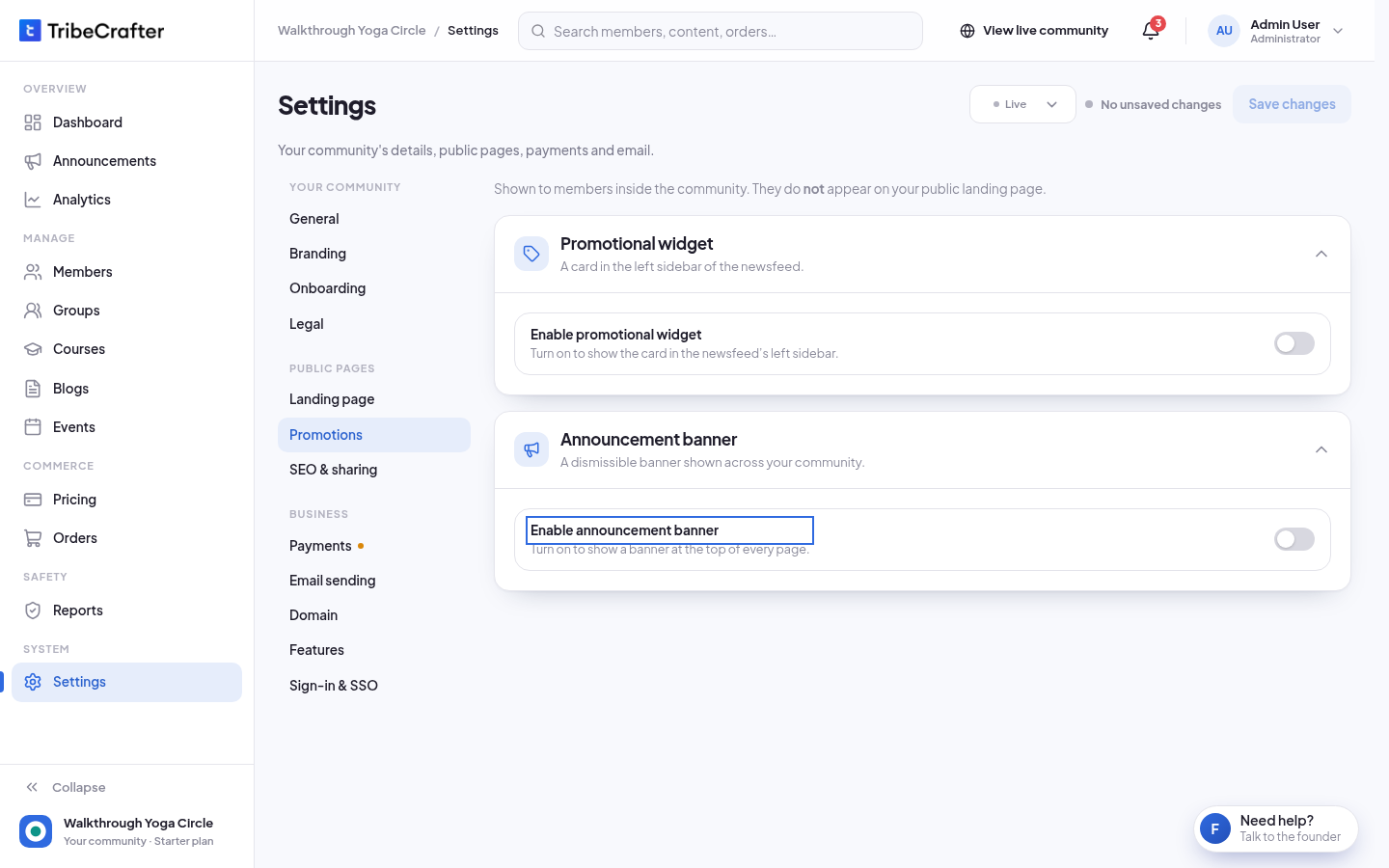
-
Write the Message.
-
Optional: add Button text and Button link. Add both or neither. With neither, the banner has no button.
-
Click Save changes.
| Field | Limit |
|---|---|
| Message (required while the banner is on) | Up to 100 characters |
| Button text | Up to 20 characters |
| Button link | A full link (https://…) or a page in your community (/courses) |
Promotional widget
This is a card in the left sidebar of the newsfeed.
- Go to Settings → Promotions.
- Turn on Enable promotional widget.
- Fill in Title, Description, Button text and Button link. All 4 are required while the widget is on.
- Optional: add Eyebrow text and an Image.
- Click Save changes.
| Field | Limit |
|---|---|
| Eyebrow text | Up to 30 characters. If empty, members see "Partner offer". |
| Image | 800 × 480 px is best. JPG or PNG. |
| Title | Up to 60 characters |
| Description | Up to 160 characters |
| Button text | Up to 20 characters |
| Button link | A full link (https://…) or a page in your community (/courses) |
Turn one off
Turn off its toggle and click Save changes. Your texts are kept, so you can turn it on again later.
If something goes wrong
| Message | What to do |
|---|---|
| "Message is required when the banner is on." | Write a message, or turn the banner off. |
| "Title is required when the promotion is on." | Fill in every required widget field. |
| "Add a link for this button." / "Add text for this button." | Fill in both button fields, or clear both. |
| "Enter a valid URL (https://…) or path (/courses)." | Use a full link or a path that starts with /. |