Block a member to cut all contact between you, and unblock them later if you change your mind.
Before you start
You can't block admins or moderators. Block isn't in the menu on their profile. If you have a problem with one of them, use Report on their profile.
Block someone
-
Open the member's profile.
-
Click the three dots at the top right of the profile, then Block.
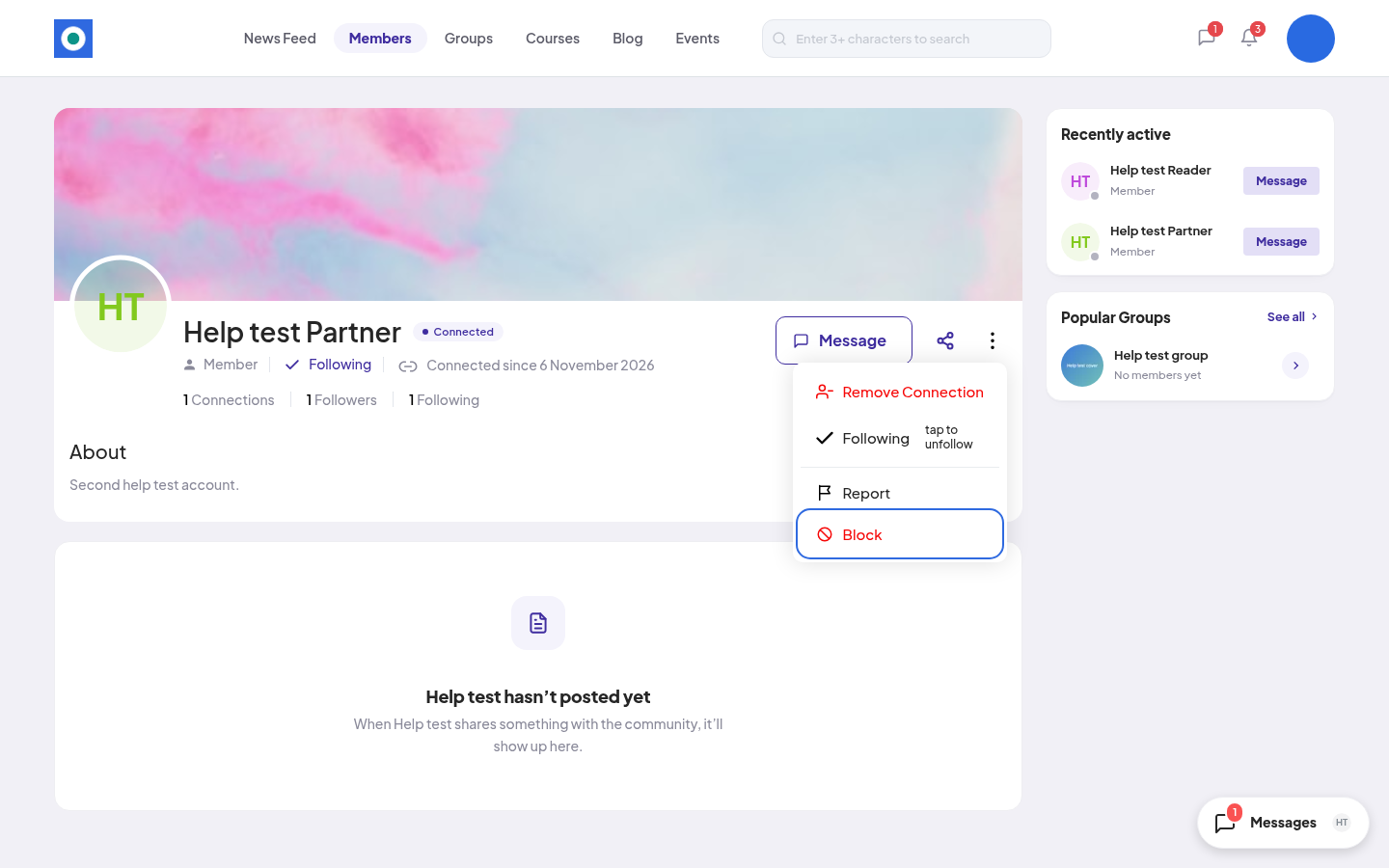
-
You see "Block [name]?" Click Block.
-
You see "You’ll no longer see or interact with [name]."
What blocking does
Blocking works both ways. From that moment:
- Neither of you can open the other's profile. You don't see each other in Members.
- Any follows and connections between you end, both ways. A connection request between you is removed.
- Neither of you can send the other a message. Your old conversation stays, but you see "You blocked [name]." with an Unblock link. They see "You can't reply to this conversation."
- You don't see each other as online.
Unblock someone
-
Open the account menu (your picture, top right) and click Settings.
-
Click Blocked Members. You see everyone you blocked, with the date.
-
Click Unblock next to the member.
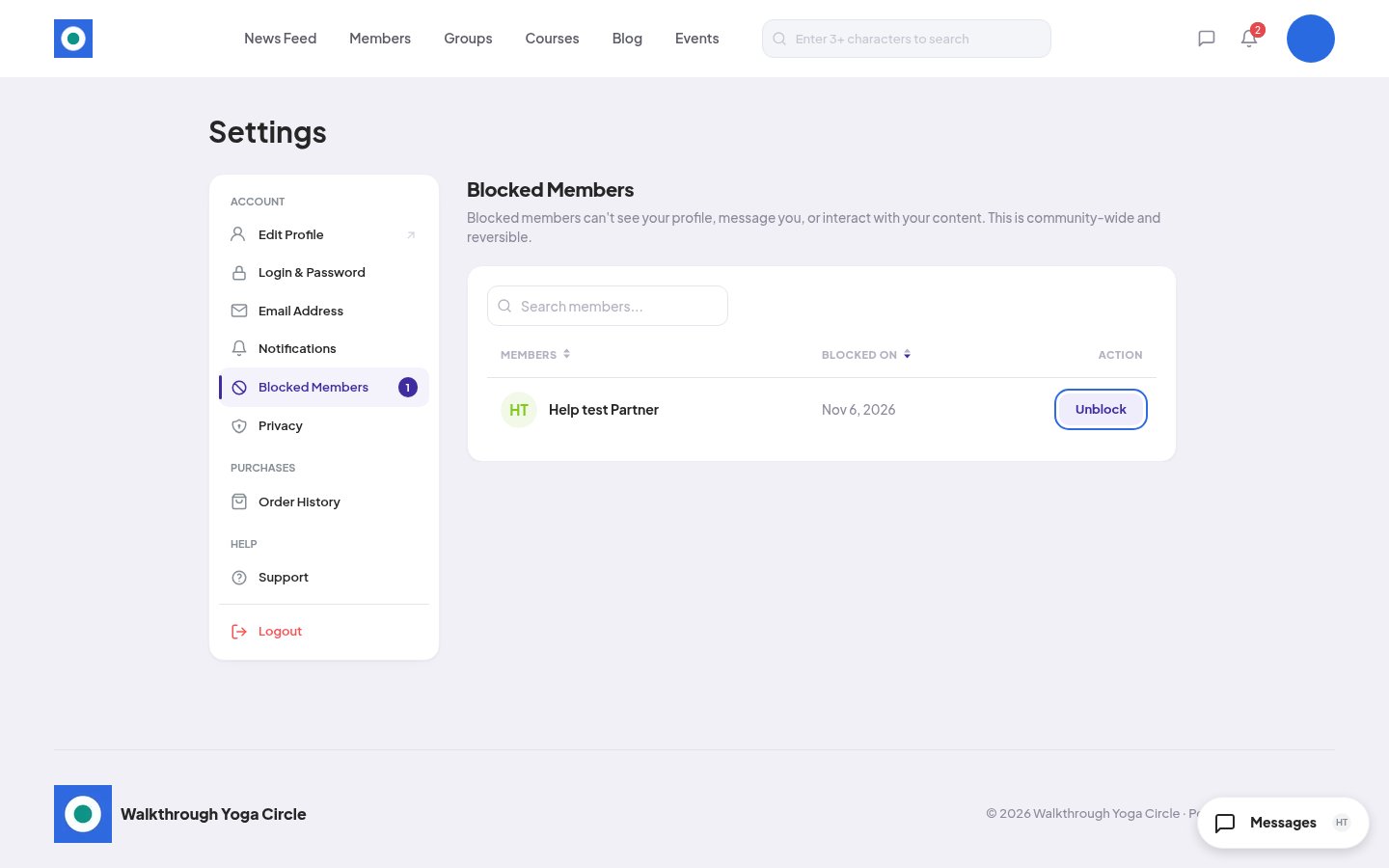
-
You see "Unblock [name]?" Click Unblock. You see "[name] unblocked".
You can also click Unblock at the bottom of your old conversation with them.
After you unblock
Your old follows and connection don't come back. To connect again, click Connect on their profile and wait for them to accept. See Following vs connecting.