Write posts and polls, react, comment, save and share, and choose which posts you see.
Open News Feed in the top menu. You need to finish onboarding before you can post, react or comment.
Global feed and My feed
| Tab | What it shows |
|---|---|
| Global feed | Every public post in the community, plus posts in your groups. |
| My feed | Posts from your connections, public posts from people you follow, your own posts, and posts in your groups. |
Under the tabs:
- "Search here" finds posts in the feed.
- Type of posts shows only Media, Documents, Events or Polls. Reset shows all again.
- Sort orders the feed by New, Recent Activity or Most Popular.
Write a post
-
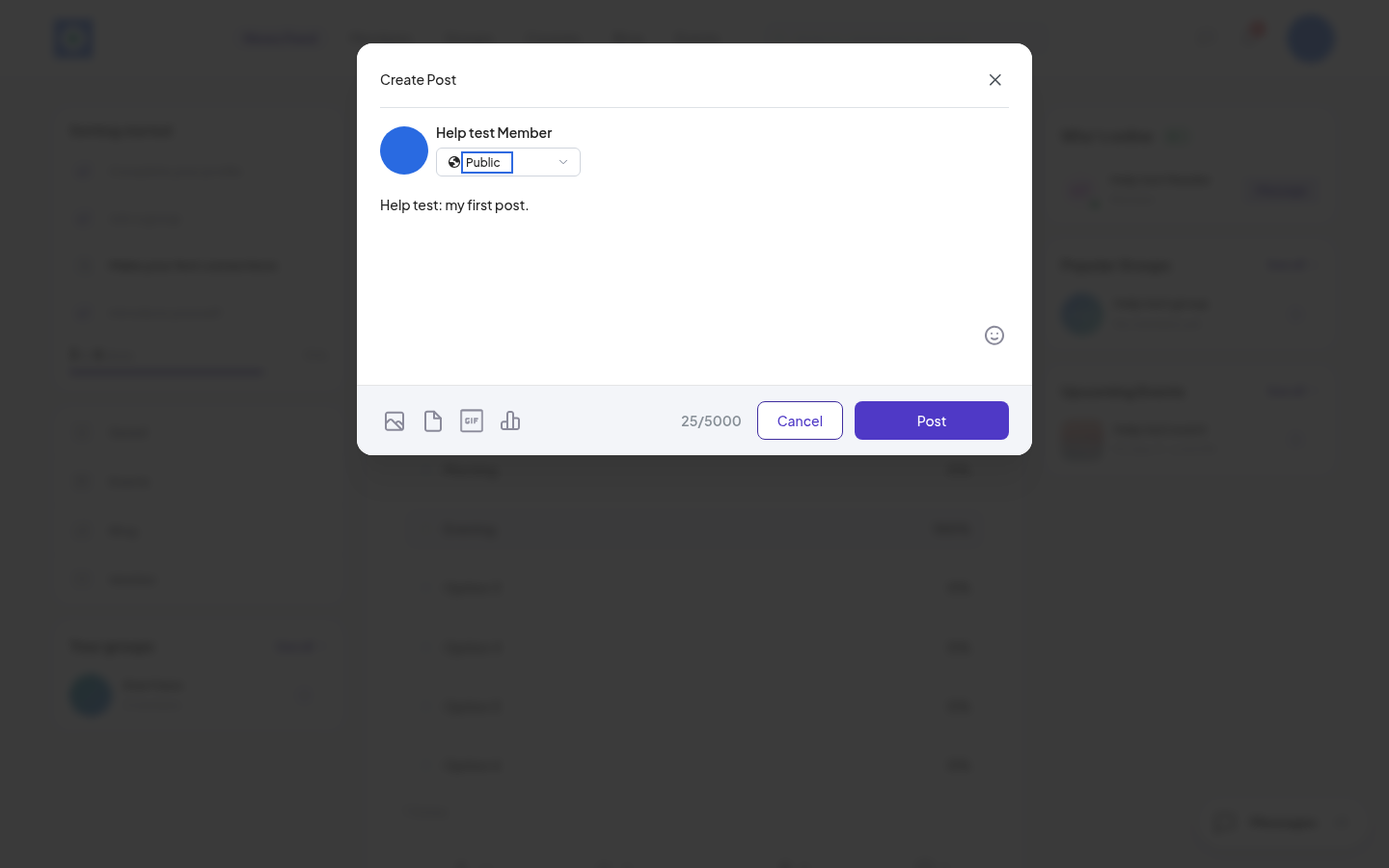
Click "Share what's in your mind..." at the top of the feed. Create Post opens.
-
Under your name, click Public to choose who can see the post, then click Save:
- Public: "Visible to anyone, on or off this site".
- My Connections: "Visible only to your connections".
- Post in Group: "Visible to members of a group". Pick one of your groups.
-
Write your text. The counter shows how many of the 5,000 characters you used.
-
To add more, use the icons at the bottom: Media (photos or a video), Document, GIF or Poll. The smiley adds an emoji.
-
To mention someone, type @ and the start of their name, then pick them from the list. They get a notification.
-
Click Post. You see "Post successfully added."
Add a poll
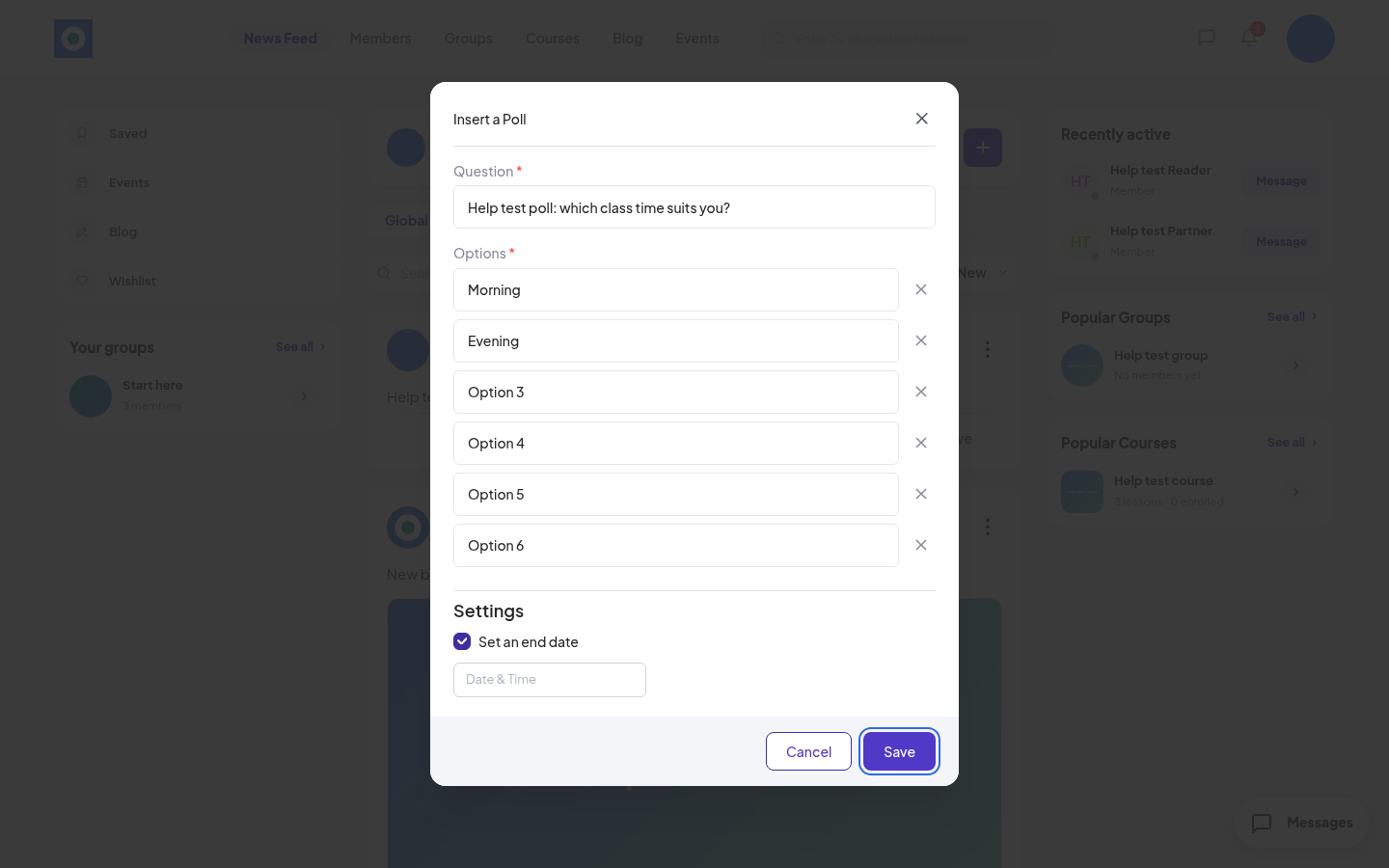
- In Create Post, click the Poll icon. Insert a Poll opens.
- Type the Question (up to 255 characters).
- Fill in the Options. You need at least 2. Click Add Option for more, up to 6. Each option is up to 100 characters.
- To close the poll at a set time, tick Set an end date and pick the Date & Time.
- Click Save, then Post.
Members vote by clicking an option. Results show as percentages, with the number of votes.
React, comment, save and share
Each post has 4 buttons under it:
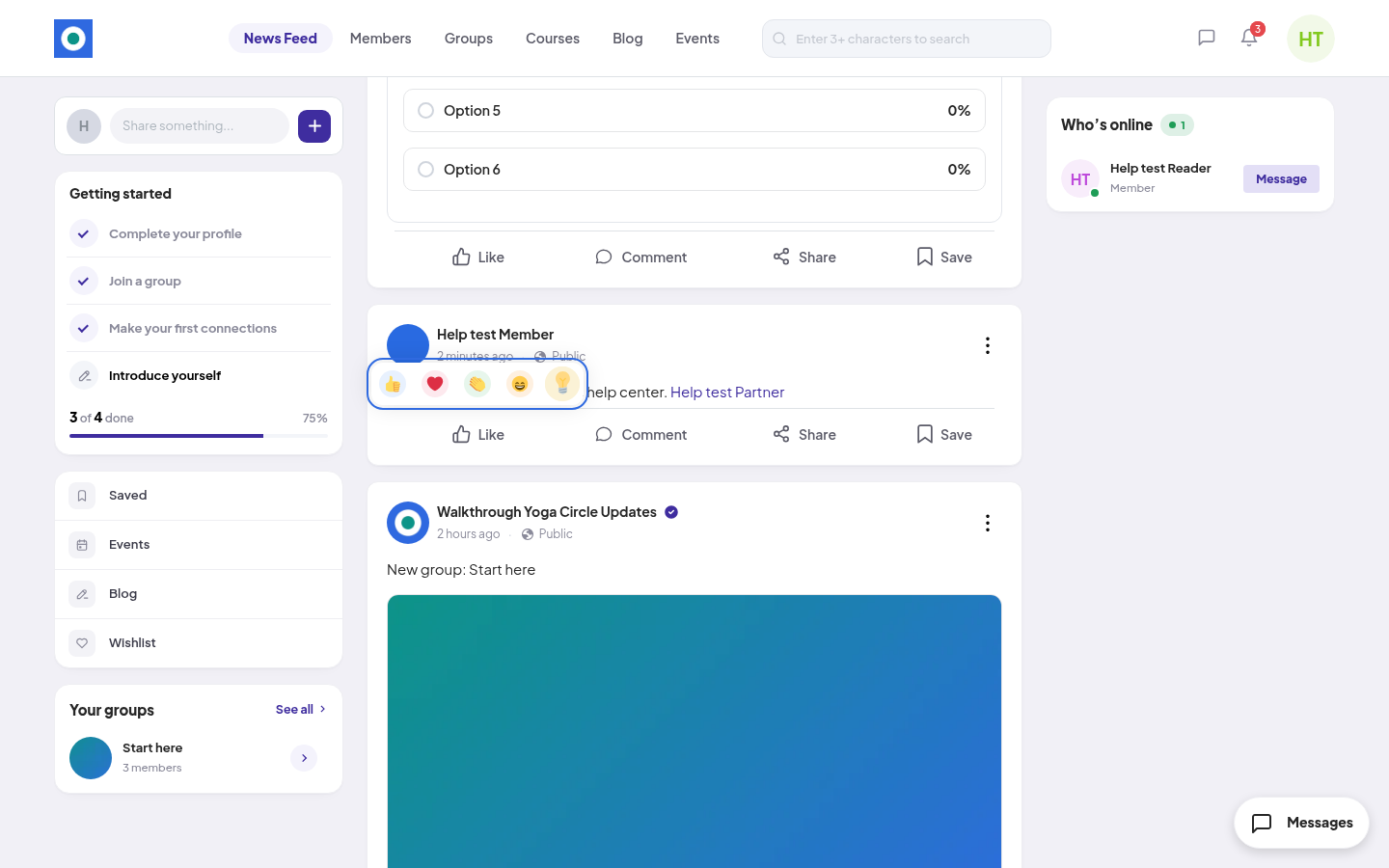
- Like: click for a quick like. Point at it to pick one of 5 reactions: Like, Love, Celebrate, Funny or Insightful.
- Comment: the post opens with its comments. Type in "Write a comment...", then press Enter. A comment can have up to 2,000 characters. Over that, you see "Comment must be within 2000 characters". Click Reply under a comment to answer it.
- Share: copy the post's link, or share it to WhatsApp, Facebook, Messenger, Telegram or X. If your community has messages on, you can also share it to Chat.
- Save: keeps the post for later. Find it in the account menu under Saved posts.
Your own posts
Click the three dots at the top right of your post:
- Edit post: change your post, then click Save.
- End poll: on a poll, stop the voting. This can't be undone. The poll then shows "This poll is closed!"
- Delete post: remove it for good. Confirm with Delete. You see "Your post has been deleted successfully".
On someone else's post, the three dots give Report this post and Mute Notifications.