Send private one-to-one messages to other members, with photos, files, GIFs and reactions.
Before you start
- Finish onboarding first. See Completing onboarding.
- You can message any member. You don't need to follow or connect first.
- Your community must have messages turned on. If you don't see Message or the Messages icon, the community turned them off.
- You can't message someone if either of you blocked the other.
Start a conversation
-
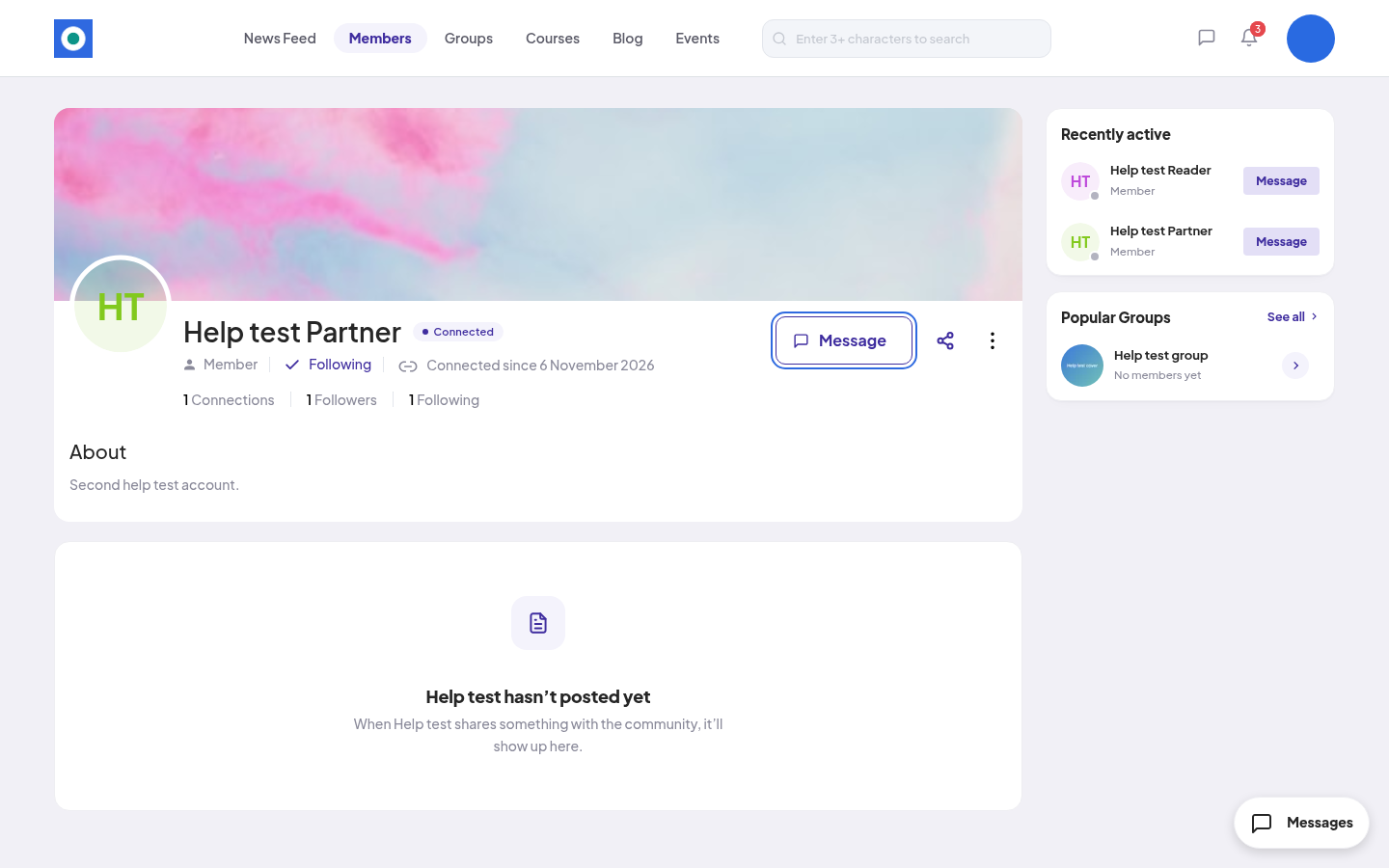
Open the member's profile. If you are connected, click Message. If not, click the three dots, then Message. You can also click Message next to a member on the right of News Feed and Members.
-
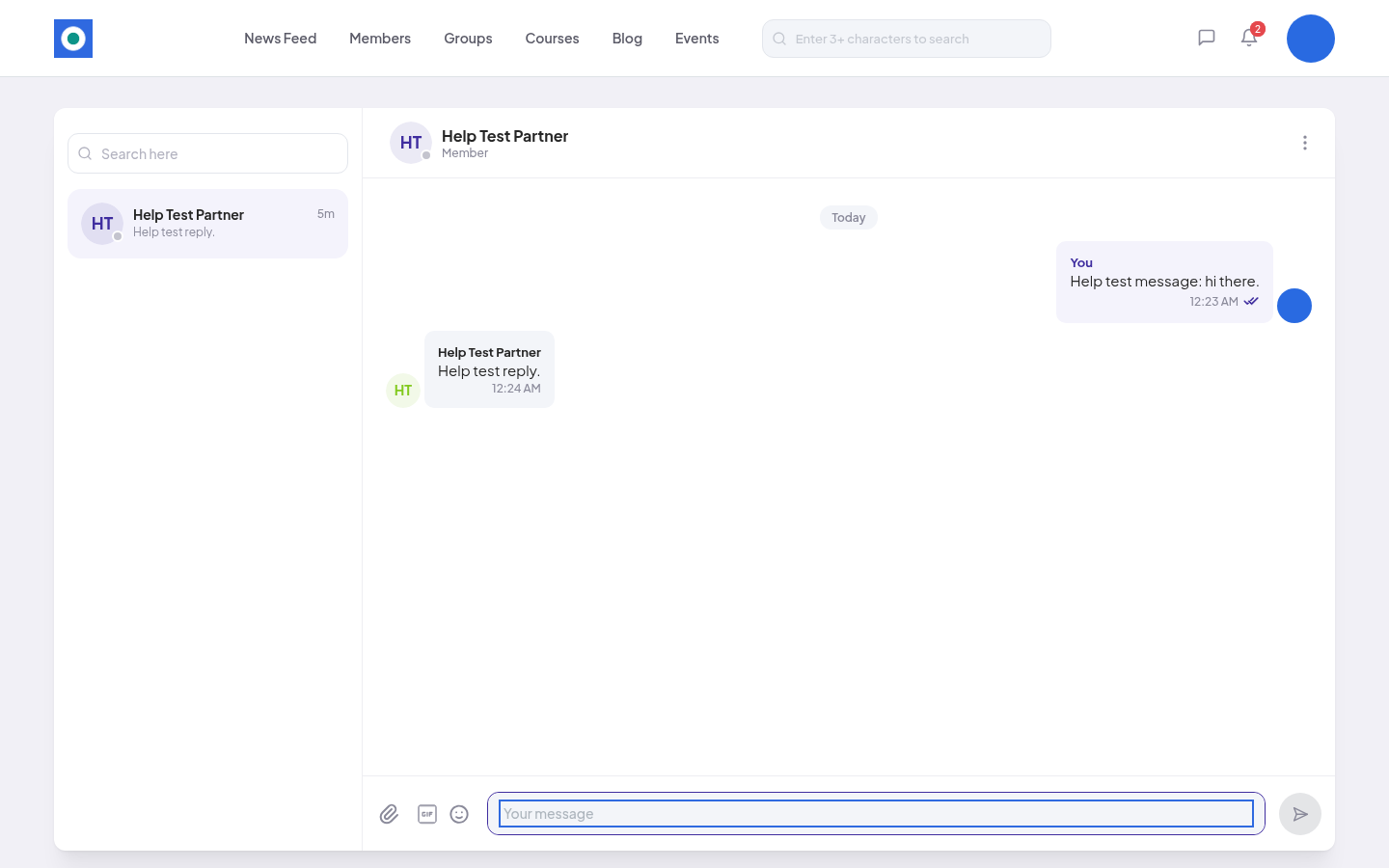
The conversation opens. Type in "Your message".
-
Press Enter, or click the send arrow.
Find your conversations
- Click the speech-bubble icon in the top bar. Messages opens with all your conversations on the left. Use "Search here" to find one.
- Or click the Messages button at the bottom right of most pages. A small Chat panel opens, so you can reply without leaving the page.
When someone sends you a message, a number shows on the icon until you read it.
What you can send
The icons next to the message box:
- The paperclip (Attach file): photos and documents.
- GIF (Pick GIF): pick a GIF.
- The smiley: add an emoji.
In a conversation
- To react, point at a message and click the smiley. Pick one of 5 reactions.
- Reply or Copy: point at a message, click the three dots, then Reply or Copy.
- The ticks under your message show that it was sent and read.
- New messages: a line shows where your unread messages start.
The three dots at the top right of a conversation give View Profile, Mute Conversation and Report User.
Limits
- Conversations are one-to-one. There are no group chats.
- You can't edit or delete a message after you send it.
Share a post in a message
If your community has messages on, you can share a post in a message. Under a post in the newsfeed, click Share, then Chat. Share via Chat opens with a link to the post. Pick up to 5 people from your recent chats and send it.