Add a product to your cart, pay once on Stripe, and open the courses, groups and blog posts it unlocks.
A product is a one-time purchase. You pay once. There is no renewal.
Find a product
- In the top menu, click Plans, then the Products tab. If your community sells only products, the top menu says Products. Click it.
- Each card shows what the product unlocks, the price, and how long access lasts, for example "lifetime" or "30 days".
- Open a product to see What's included in the product.
You can also get to a product from a locked group, course or blog post: click Get Access and pick a product.
Add it to your cart
- On the product page, click Add to cart. You see "The product has been added to your cart."
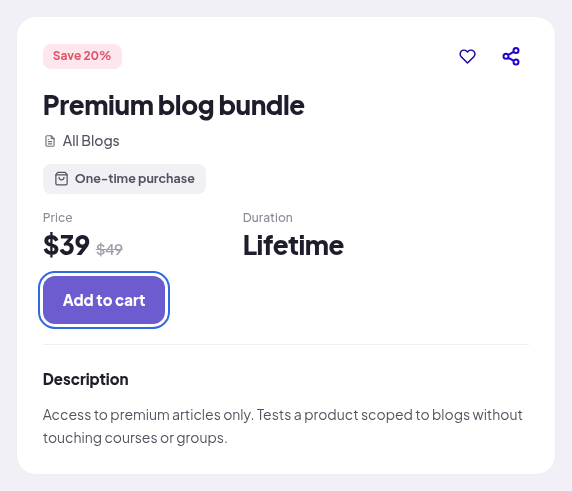
- The button changes to Go to Cart. The cart icon in the top bar shows the number of items.
Check out
- Click the cart icon, or Go to Cart.
- Check Your cart. Each line shows what the product unlocks and how long access lasts. Total due today shows what you pay.
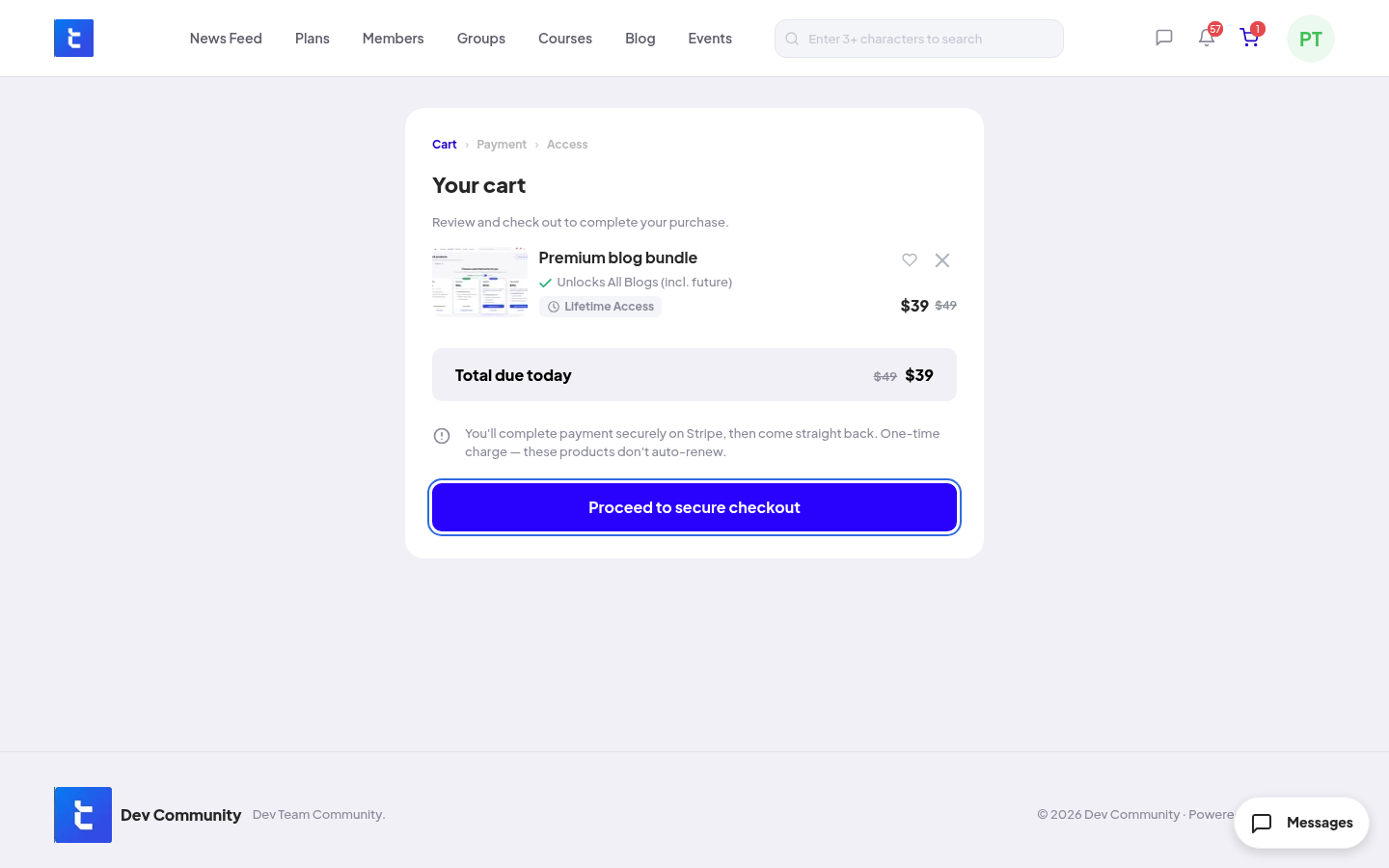
- Click Proceed to secure checkout. Stripe opens in the same tab.
- Pay on Stripe. You come back to the community, and the page shows what you unlocked.
- Click View your content to open it.
If the payment does not go through, you see "Payment failed". Click Retry Payment to try again, or Go Back.
Change your cart
- Click the X on a line (Remove from Cart) to take a product out. You see "The product has been deleted successfully from the cart."
- Click the heart on a line (Move to wishlist) to keep it for later. See What you've unlocked and your wishlist.
- If one product already includes everything in another, the cart tells you, so you don't pay twice.
Rules and limits
- The cart holds products only. Plans are bought on their own. See Subscribing to a plan.
- Access starts as soon as the payment is confirmed. A lifetime product never ends. A product with a set number of days ends after that time.
- There are no coupon codes.
- Your receipt and order are in Settings → Order History.
Refunds
Refunds are up to your community. Ask the community team. If they refund:
- The full amount: the access from that product ends at once.
- Part of the amount: you keep your access.