Review what members reported, remove or keep it, and suspend a member who breaks your rules.
Community Admins and Moderators can open Reports and act on reports. Course Managers and Blog Managers can't.
What members can report
Members can report posts, comments, members, groups, courses, lessons, blog posts, events and products.
- A member picks a reason and can add a message of up to 500 characters.
- A member can report an item only once.
- Members can't report their own content.
- The author is not told who reported it.
A report doesn't hide anything by itself. The item stays up until you act.
Who is told about a new report
- Community Admins get a notification for each new report.
- Moderators don't get a notification, even though the Reports page says "You get a notification for each new report." Moderators should check Reports themselves.
- In Studio, Reports in the sidebar shows a red number, and the bell shows "N reports to review".
Review a report
- In Studio, click Reports. The To review tab lists each reported item once, with its type, the reason, the number of reports and the date of the last one.
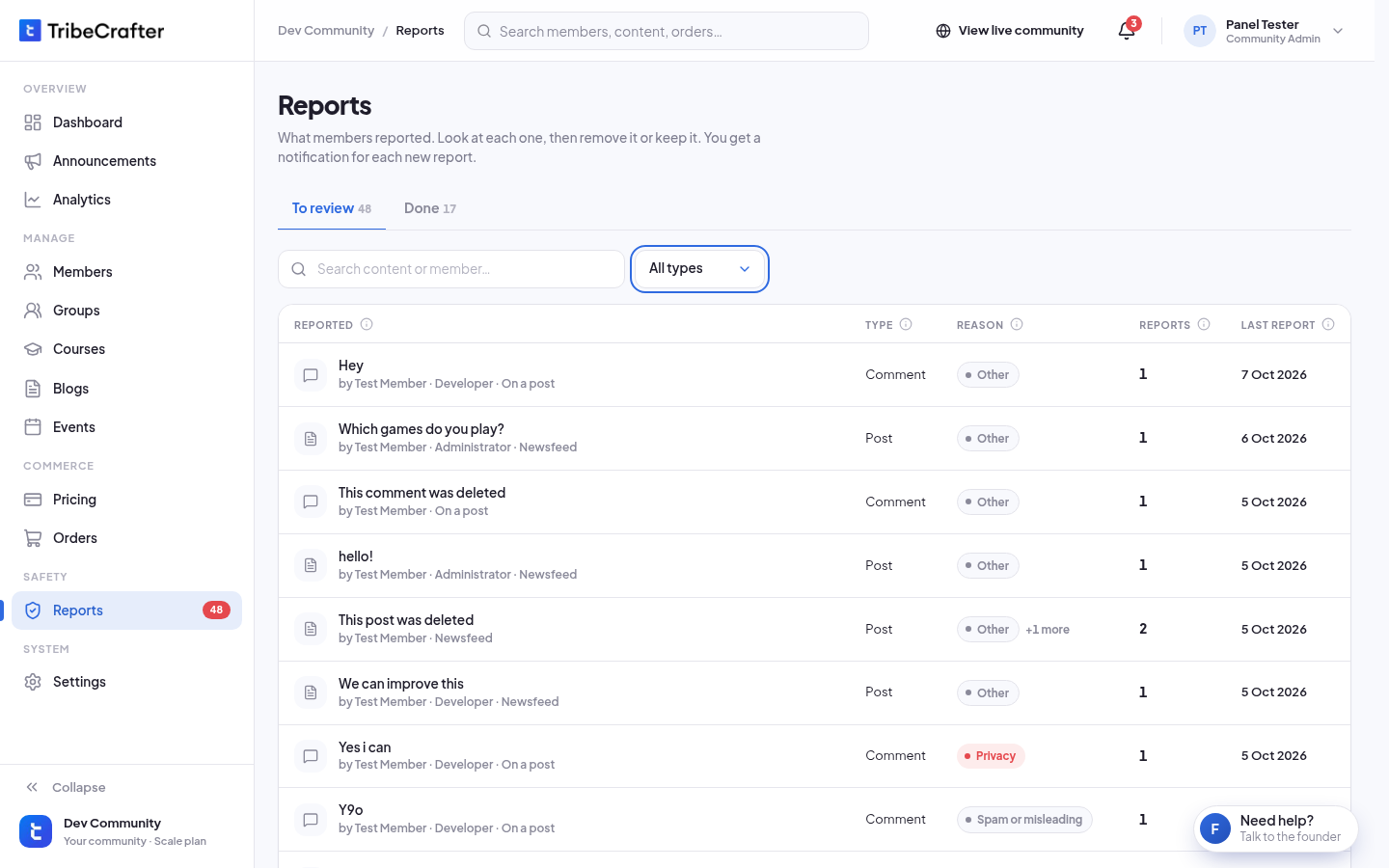
- To narrow the list, search, or pick a type in All types: Posts, Comments, Members, or Groups, courses and more.
- Click an item. A panel opens with the item, its author, and every report with its reason and message.
- Choose what to do. See below.
A post or a comment
- Keep it: you see "Keep this post?" Click Keep it. The report moves to Done. Nothing changes for the author, and nobody is told.
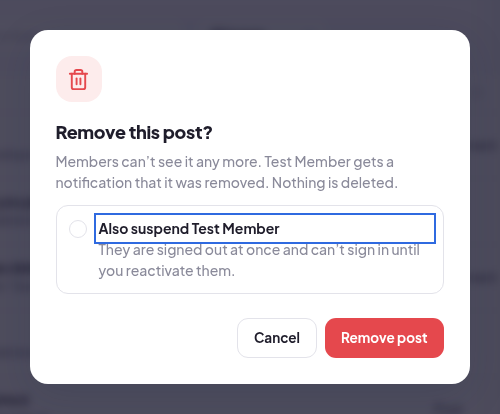
- Remove post or Remove comment: you see "Remove this post?" (or "Remove this comment?"). Click Remove post (or Remove comment).
- Members can't see it any more.
- The author gets a notification that it was removed.
- Nothing is deleted. You can restore it later.
- Tick Also suspend to suspend the author at the same time. They are signed out at once and can't sign in until you reactivate them.
A member
- Keep member: the report moves to Done.
- Suspend member: you see "Suspend ?" Click Suspend member. They are signed out at once and can't sign in until you reactivate them from Members. Their posts stay. Nothing is deleted.
A group, course, lesson, blog post, event or product
These are things you made, so Reports can't remove them.
- Click Open product (or group, course and so on) and change it or unpublish it.
- Come back and click Mark as reviewed.
Undo a decision
Open the Done tab. It shows each item with its outcome (Removed, Kept, Member suspended, Reviewed, no change, or Deleted when the author deleted it; Author suspended shows next to Removed), who acted and when.
Click an item:
- Restore post or Restore comment: members can see it again. The author is not told. If the author was suspended, they stay suspended: reactivate them from Members.
- Reactivate member: they can sign in and post again at once.
- Move back to To review: for an item you kept or marked as reviewed.
A new report on a kept item puts it back in To review by itself.
Who can act on whom
| You are | You can remove content by | You can suspend |
|---|---|---|
| Community Admin | Moderators, Course Managers, Blog Managers, Members, and other Community Admins | Moderators, Course Managers, Blog Managers and Members |
| Moderator | Other Moderators, Course Managers, Blog Managers and Members | Course Managers, Blog Managers and Members |
When you can't act, the button is off and Studio says why: "You can’t remove content by someone with a higher role than yours." or "You can only suspend members with a lower role than yours."
The member who reported is not told what you decided.
Remove a post that nobody reported
- In Studio, go to Groups and open the group.
- Open the Posts tab.
- On the post's row, open the menu and click Remove.
- You see "Remove post?" Click Remove post. You see "Post removed."
The author gets a notification. A post removed this way can't be restored in Studio, unless it had a report: then restore it from Reports → Done.