See how a group is doing, add or remove members, remove posts, share files, and check how a paid group is sold.
Before you start
- Community Admins can do everything on this page.
- Moderators can open groups and remove posts. They also see Add member, Remove from group, Upload documents and Edit, but the server refuses those for them.
Open a group
- In Studio, go to Groups.
- Click the group's name.
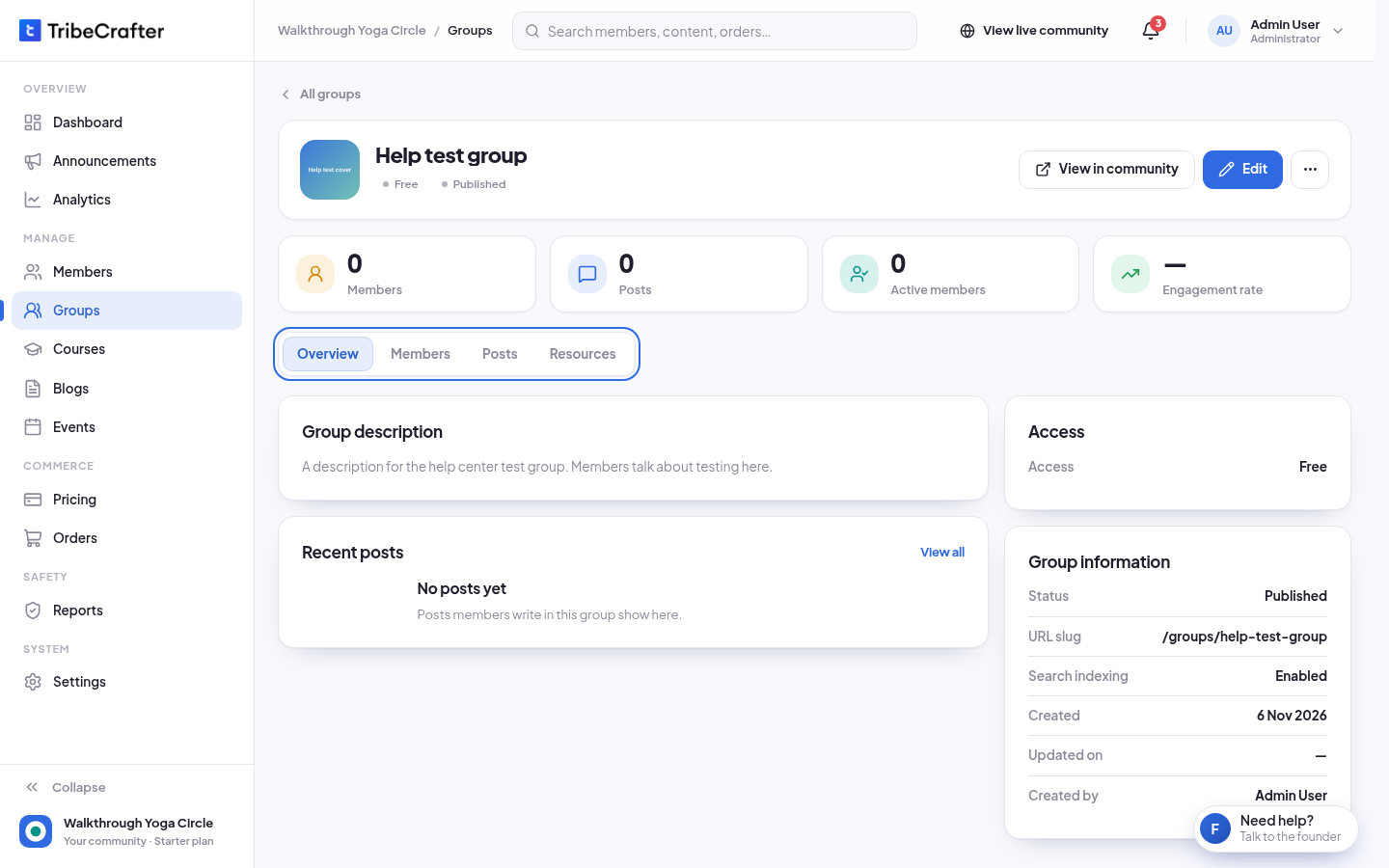
At the top you see 4 numbers: Members, Posts, Active members and Engagement rate. The Members number can take a few minutes to update after someone joins or leaves. Engagement rate stays empty until the daily analytics run.
Under the numbers are the tabs: Overview, Members, Posts, Resources, and Access (paid groups only).
Overview
Overview shows the Group description, the 5 newest posts under Recent posts, how members get in under Access, and Group information (status, web address, search indexing, created and updated dates).
A paid group that no plan or product sells shows "Not on sale. Nobody new can join." Its current members keep access. Click Add a plan or product to fix it.
Members
The Group members list shows each member's Joined date, Last active and Status. Only admins see the Email column.
Add a member
- On the Members tab, click Add member.
- Under Search member, type a name or email and pick the member. You can pick more than one.
- Click Add member. You see "1 member added to ."
In a free group, the member joins as if they clicked Join. In a paid group, they get access for life without paying. That access shows on their member page, and you can take it back there.
Remove a member
- On the Members tab, click ⋯ on the member's row.
- Click Remove from group.
- Click Remove member. You see "Member removed from group."
The member loses access to the group but stays in your community. A member who paid for the group keeps it until their order is refunded or their plan ends.
Posts
The Group posts list shows each post's type, author, reactions, comments, reports and status. Filter by Statuses (Published or Removed) to find removed posts.
To remove a post:
- Click ⋯ on the post's row, then Remove.
- Confirm. You see "Post removed."
The post is hidden, not deleted. The author gets a notification, and any open reports on it are closed. You can't remove a post by someone with a higher role than yours.
There is no Restore on this tab. A removed post that had reports can be restored from Reports. A removed post with no reports can't be restored.
Resources
Share documents that only this group's members can download.
- On the Resources tab, click Upload documents, or drag files into the box.
- Pick one or more files. You see "Document uploaded."
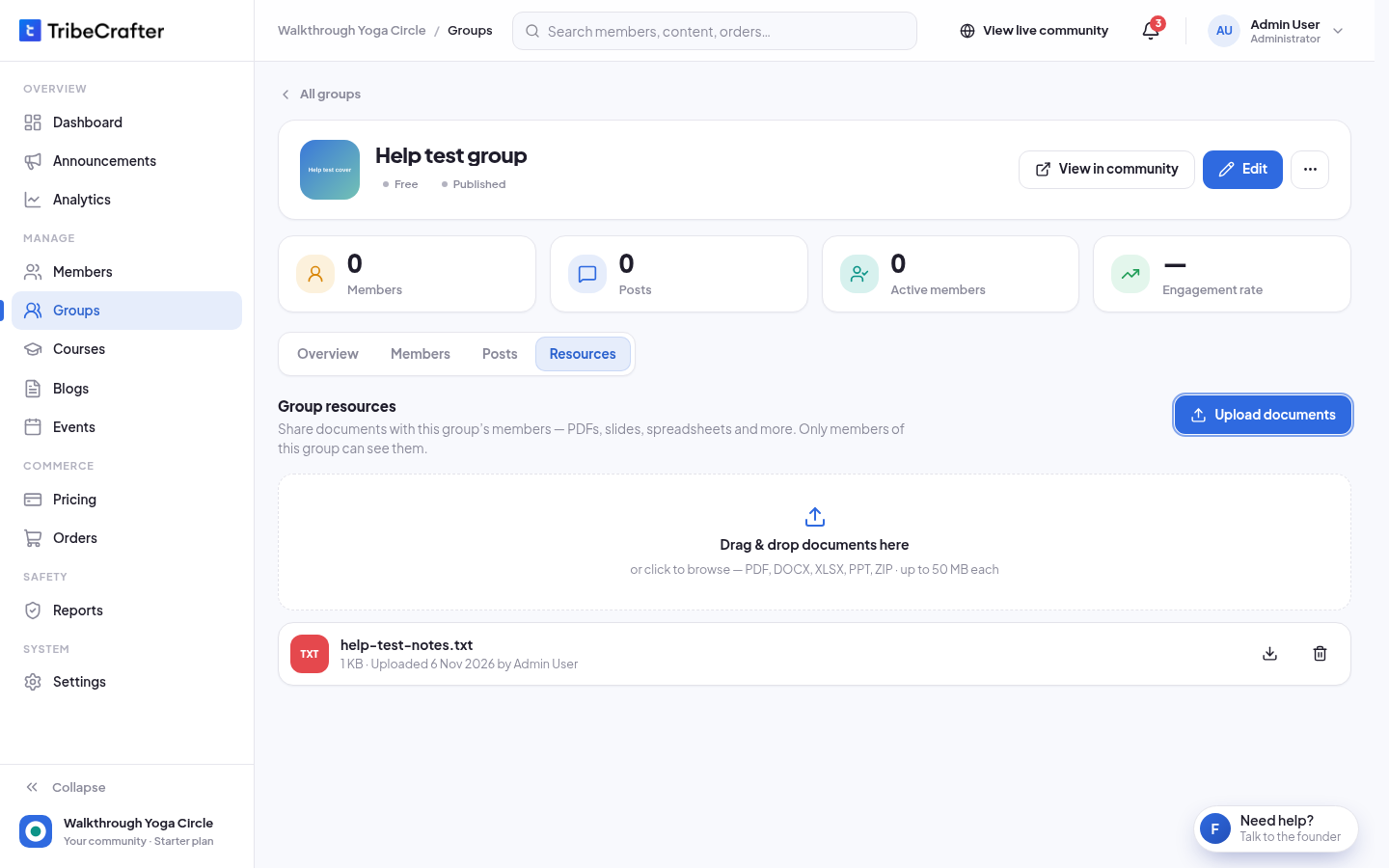
To delete a file, click its delete button and confirm. You see "Document deleted."
| Rule | Limit |
|---|---|
| File types | PDF, Word, Excel, PowerPoint, ZIP, CSV or text |
| Size | Up to 50 MB each |
| Uploads | Up to 60 an hour |
| Files per group | Up to 200 |
Access (paid groups)
The Access tab lists, under Sold through, every plan and product that gives access to this group, with its type, price and status. Plans or products that include all groups show here too.
To change how the group is sold, click Edit and open the Access tab of the form.
If something goes wrong
| Message | What to do |
|---|---|
| " is already in this group." | Nothing to do. |
| "This file is larger than 50 MB." | Make the file smaller or split it. |
| "Use a PDF, Word, Excel, PowerPoint, ZIP, CSV or text file." | Convert the file to one of these types. |