Find a member, see what they have joined and bought, invite people, give free access, and suspend or delete an account.
Community Admins can do everything here. Community Moderators can open Members too, but they only see the list and can suspend people with a lower role. See Member roles explained.
The Members list
In Studio, go to Members. The list shows everyone in your community, with their Role, Plan, Status, Joined date and Last active time. Admins also see each email.
- Search members… finds a first name, last name, full name or username. Admins can also search by email.
- Narrow the list with the 4 filters: All roles (including Instructors, people who teach a course), All memberships (Paid, No membership or one plan), All statuses (Active, Suspended, Not onboarded) and All time (Today, Last 7 days, Last 30 days).
- The owner has an Owner label next to their role.
Each row has a ⋯ menu with View in community, Change role, Suspend member (or Reactivate member) and Delete member.
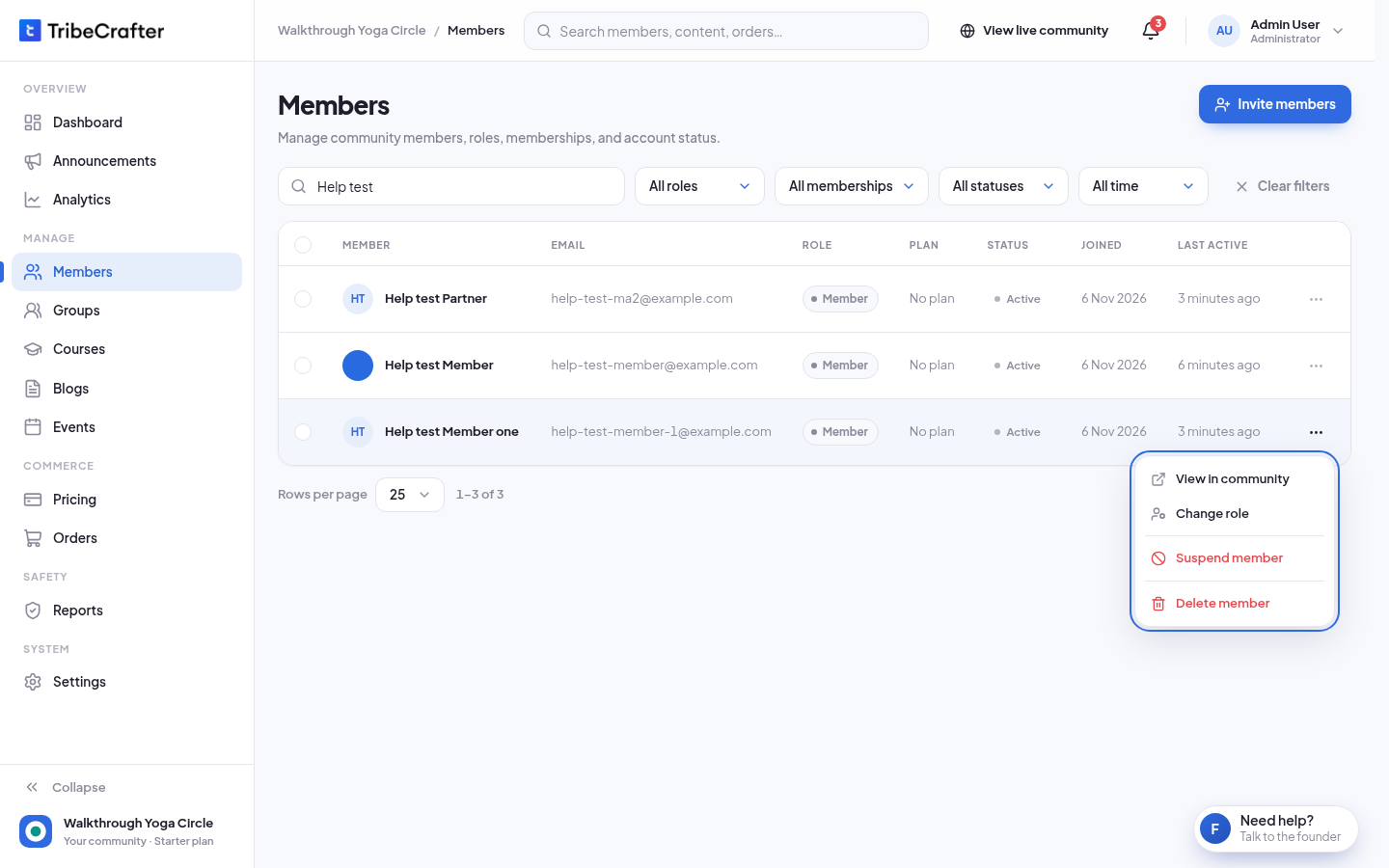
To act on several people at once, tick their rows. A bar shows how many you picked, for example "2 members selected", with Change role, Suspend and Delete. You can pick up to 100 members at a time. Bulk Suspend and Delete leave out Community Admins.
A member's page
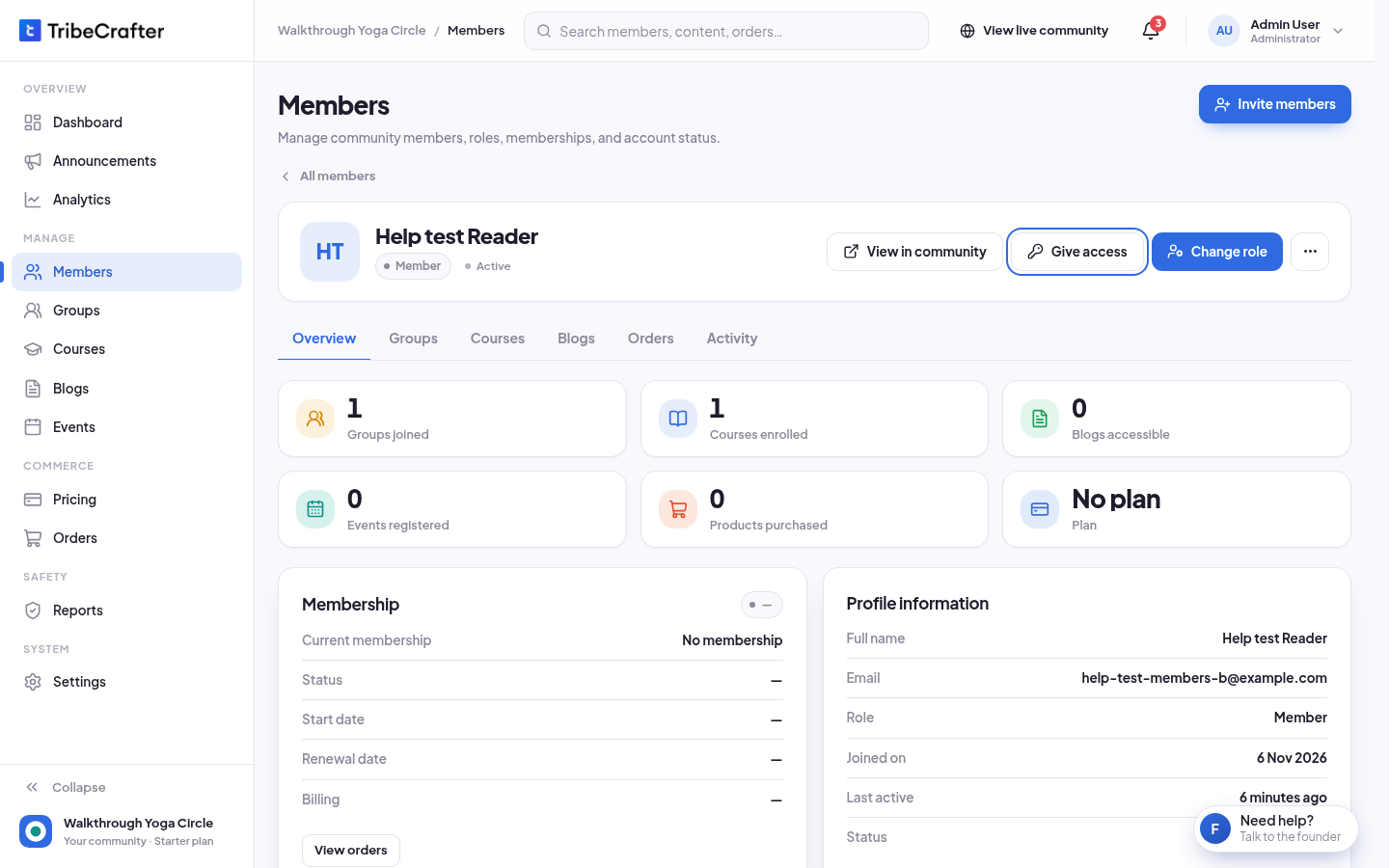
Click a member to open their page. At the top are View in community, Give access, Change role and a ⋯ menu with Suspend member and Delete member.
The tabs:
| Tab | What it shows |
|---|---|
| Overview | Counts of groups, courses, blog posts, events and products bought, their plan, the Membership panel (status, start date, renewal date, billing) and Profile information. |
| Groups | The groups they joined, with Free or Paid access. Use ⋯ → Remove from group to take them out. |
| Courses | Their courses with progress. Use ⋯ → Unenroll to take them out. |
| Blogs | The published blog posts they can read. |
| Orders | Their plan payments and product orders, and any access you gave for free. |
| Activity | Their last 30 actions: joins, enrollments, purchases, event sign-ups, posts and comments. |
You can't remove someone from a group or course that they paid for. It stays until the order is refunded or their plan ends.
Invite people
Only Community Admins can invite.
- In Studio, go to Members and click Invite members.
- In Email addresses, paste the addresses. Separate them with commas, spaces or new lines.
- Optional: write a Personal note, up to 500 characters.
- Click Send N invites. You see "Invite sent to N people."
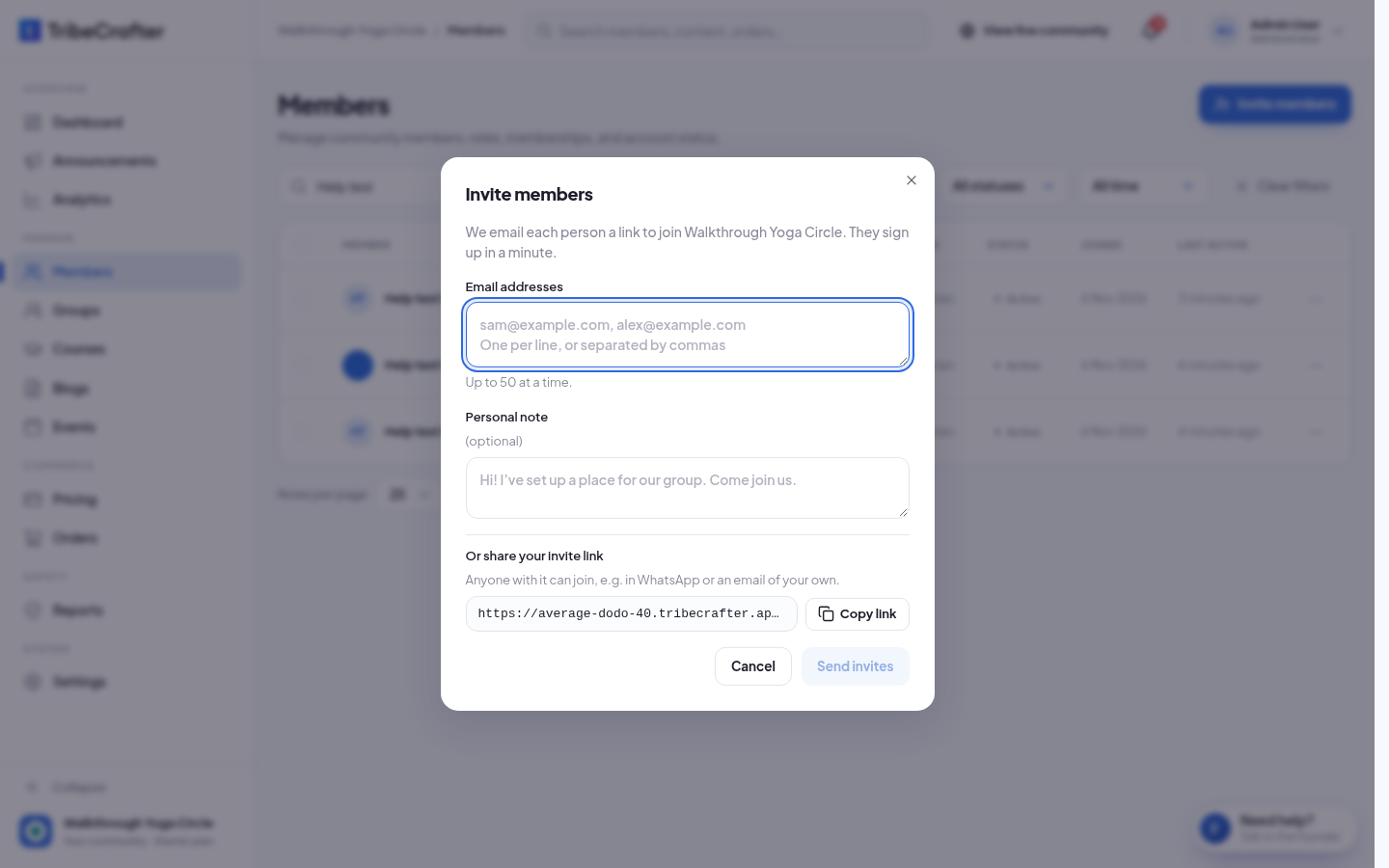
- You can send up to 50 addresses at a time, and about 200 invites a day.
- People who are already members, or got an invite today, are skipped. The message says how many, for example "1 skipped (already a member or invited today)."
- The invite is only an email. People appear in your list when they sign up.
- You can also click Copy link under Or share your invite link and post the link yourself.
What happens after they click the link is in How members join and onboard.
If something goes wrong:
- "You've sent today's invites. You can send more tomorrow, or share your invite link." Wait until tomorrow, or click Copy link and share the link.
- "Sign-up is turned off for this community (members sign in through your own login), so invites can't be sent." The owner turns on Anyone can sign up in Settings → Sign-in & SSO.
Give free access to paid content
Only Community Admins can do this. Use it to give someone a paid group, paid course or blog collection without payment.
- Open the member and click Give access.
- Tick what to unlock under Paid groups, Paid courses and Blog collections. Items they already have show Has access.
- Under How long, pick For life, or Until a date (access ends on) and pick the date.
- Click Give access. The member gets access at once and pays nothing.
- You can't give a plan or a product, only the groups, courses and collections in them. Free content isn't listed, because any member can join it.
- If nothing paid exists yet, the dialog says "There is nothing paid to give yet. Make a paid group, course or blog collection first."
- Give access is off for admins and moderators. They already see everything.
- To end it, open the Orders tab, find Given by admin and click Take back. They keep access only where a purchase or plan also covers it.
Suspend or reactivate a member
- Open the member, click ⋯ and click Suspend member.
- Click Suspend member in the dialog. You see their name and "has been suspended."
A suspended member is signed out at once and can't sign in. Nothing is deleted. Their posts stay, and their subscription is not cancelled, so a paid plan keeps charging.
To undo it, click ⋯ → Reactivate member, then Reactivate member in the dialog.
Delete a member
Only Community Admins can delete members.
Delete erases the person's account data. It can't be undone. If they may come back, suspend them instead.
- Open the member, click ⋯ and click Delete member.
- Click Delete member in the dialog. You see "Member deleted."
The person leaves the list. Their posts stay and show as "Deleted Member". They get no email.
Delete member is off in these cases, with the reason:
| Message | What to do |
|---|---|
| "Change their role to Member first." | Change their role to Member, then delete. |
| "Their paid plan still renews. Cancel it first, so they aren't charged after their account is gone." | Ask the member to cancel their plan from their billing page. When it no longer renews, you can delete them. |
| "Only TribeCrafter support can delete a Community Admin." | Ask TribeCrafter through Need help?. |
| "This is you. You can't delete your own account here." | You can't delete yourself. |
Rules
- Nobody can change their own role or suspend themselves.
- On another Community Admin's page, Change role and Suspend member are off, with "Only the community owner can change another Community Admin." The owner can still change a co-admin's role from the bar in the list.
- Moderators can suspend and reactivate only Members, Course Managers and Blog Managers. Otherwise they see "You can only suspend or reactivate members with a lower role than yours."