Reset a forgotten password, change your password or email, and get help with your account.
Reset a forgotten password
- On the community's Log in page, click Forgot Password.
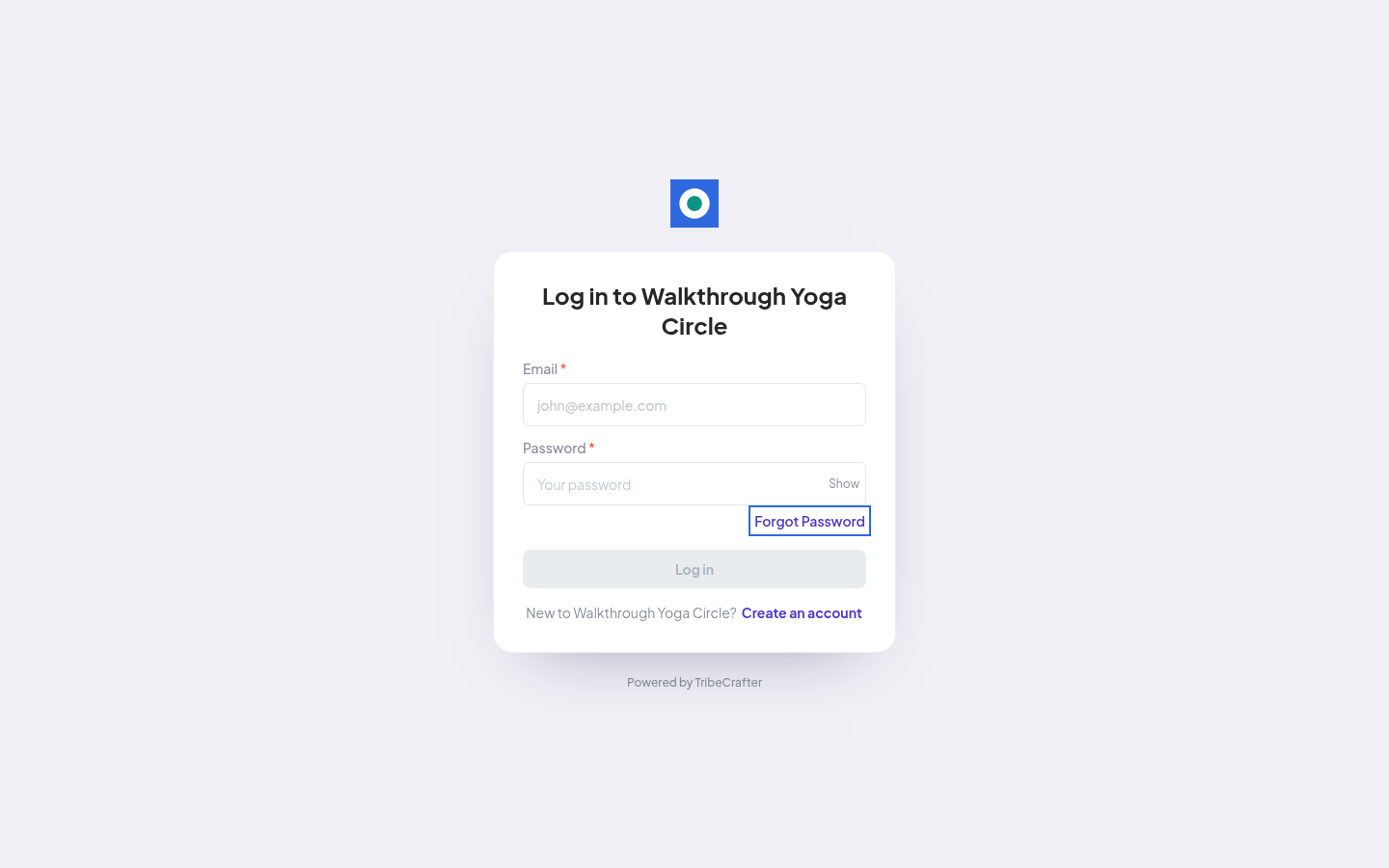
- Enter the email you signed up with and click Send reset link.
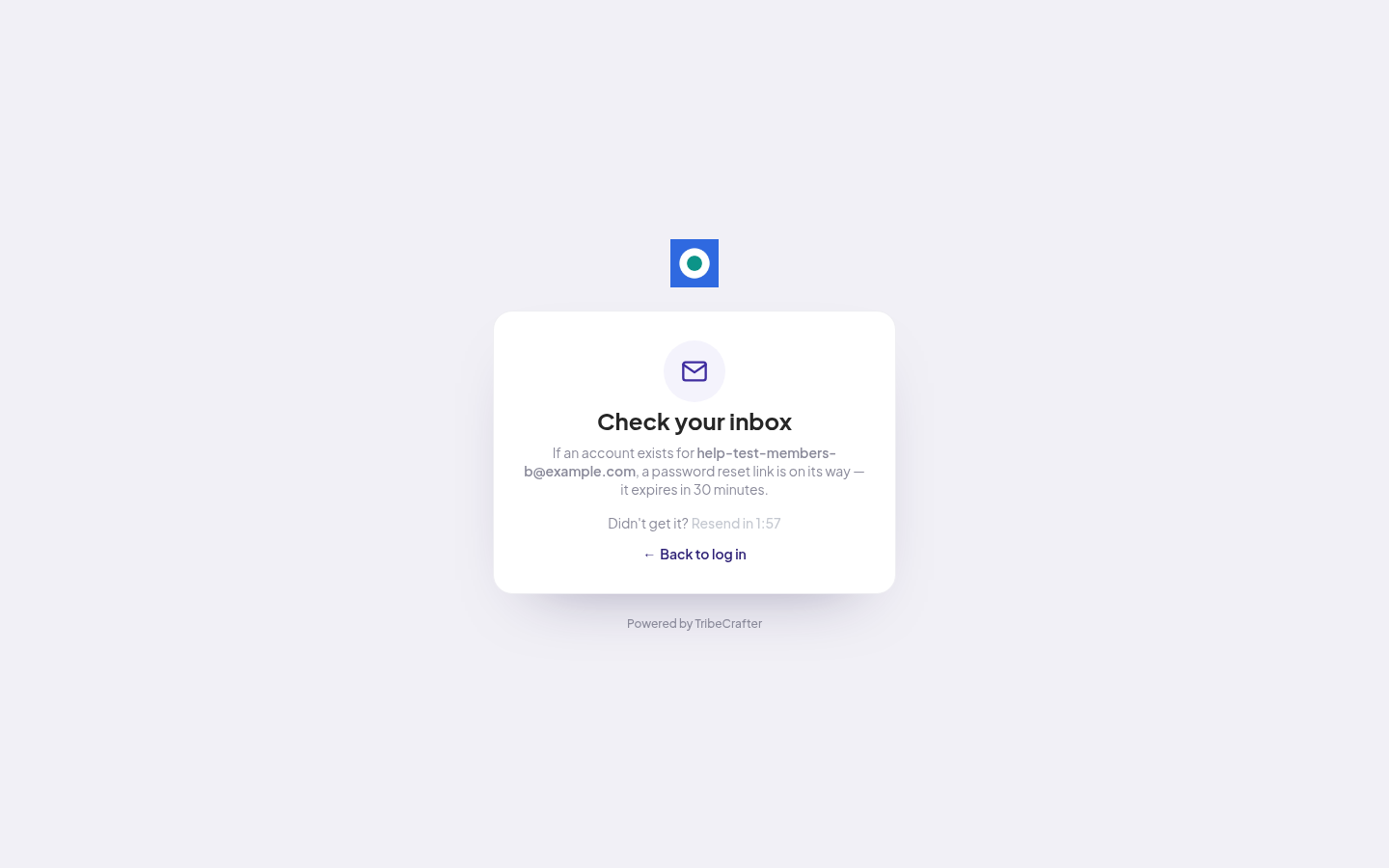
- You see Check your inbox. The link in the email works for 30 minutes.
- Open the email and click the link.
- On Set a new password, type your new password twice and click Update Password.
- You go back to Log in. Sign in with the new password.
No email? Check your spam folder. On Check your inbox, wait until the "Resend in" timer ends, then click Resend email. For your safety, the page looks the same even if no account uses that email.
Password rules
- At least 8 characters, and at most 128
- An uppercase letter (A-Z) and a lowercase letter (a-z)
- A number (0-9)
- A special character, for example ! @ # $ %
Change your password while signed in
- Open the account menu (your initials or photo, top right) and click Settings.
- Click Login & Password.
- Fill in New password and Confirm new password, then click Update password.
You stay signed in on this device.
Change your email
- In Settings, click Email Address. You see your current email.
- Fill in New email address and Confirm new email, then click Change email.
- Open the email sent to the new address and confirm it.
Get help
In Settings, under HELP, click Support. Fill in Subject, Category and Description, then click Submit. Your message goes to the community team.
If something goes wrong
- "That doesn't look like an email address": check the email for typos.
- "Resend limit reached": you asked for too many reset emails. Wait 15 minutes. A link you already got still works for 30 minutes.
- The link does not work: it is older than 30 minutes or was already used. Ask for a new one.