Put premium blog posts in a collection, then sell the collection through a plan or product.
A collection is a set of premium posts you sell together. You never sell a post on its own. Members never see collection names: they see a premium post and a Get access button.
Before you start
- Only Community Admins can create, change or delete collections. Blog Managers can see the Collections tab, but their changes fail.
- To sell a collection, you need a published plan or product, and that needs Settings → Payments ready.
Create a collection
-
In Studio, go to Blogs and open the Collections tab.
-
Click Create collection.
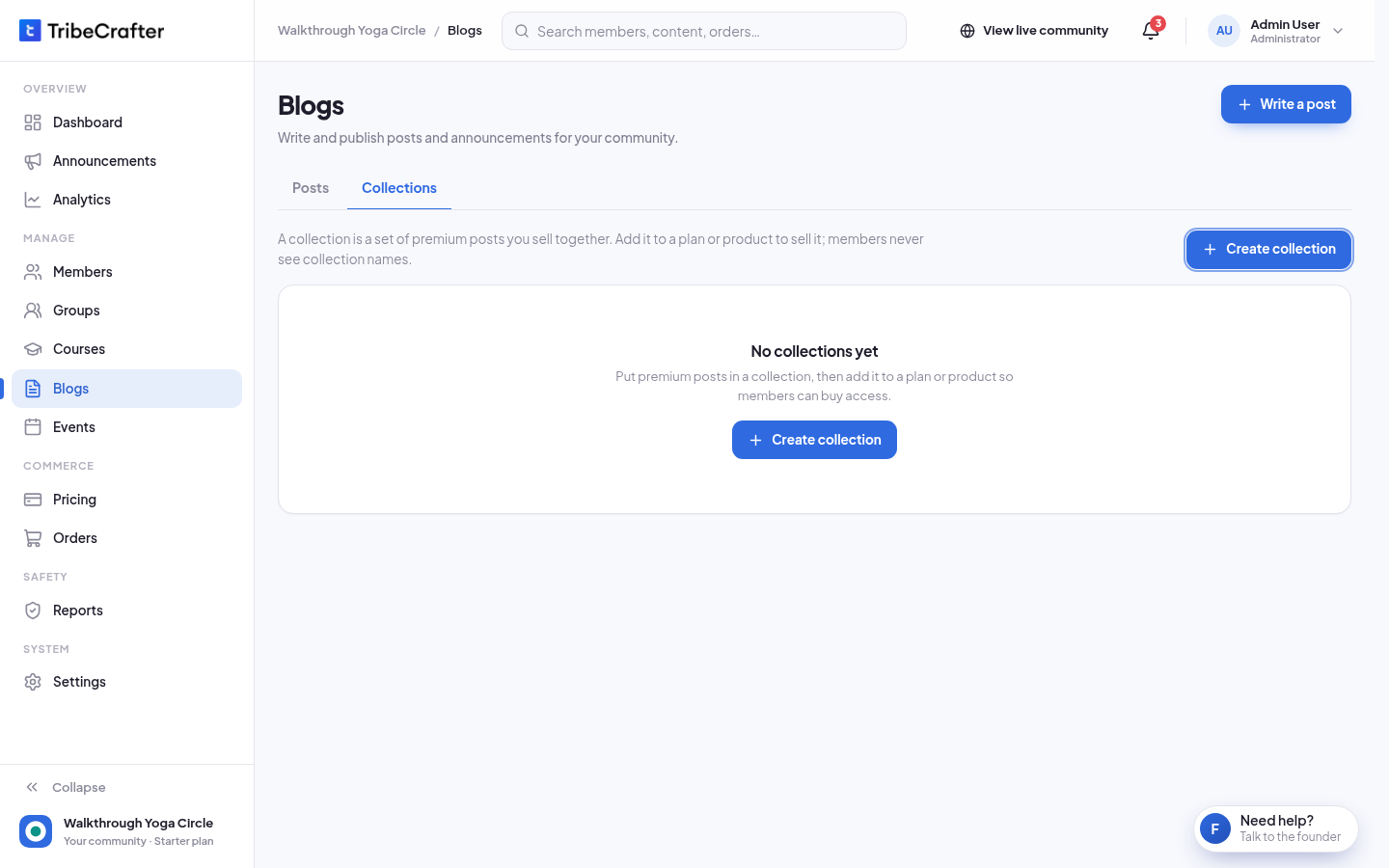
-
Fill in Collection name (up to 60 characters). Members don't see it.
-
Under Posts, tick the posts you want in it.
-
Click Create collection. A message says the collection is created: "Add it to a plan or product to sell it."
You can also add a post to a collection while you write it: on the Who can read step, pick Premium, then pick the collection in Add to collections, or click New collection.
Sell a collection
Selling happens on the plan or product, not on the collection.
- Go to Pricing and open the plan or product (or create one).
- On its Content step, under Blog collections, include the collection.
- Save, and publish the plan or product.
A member who buys one of these can read every post in the collection. A plan or product can also give every premium post, including future ones. See Choosing what a plan or product unlocks.
Check a collection
Click a collection's name to open it. You see:
- Posts: the posts in it, with their access and status. To add more, click Edit collection.
- Sold in: the plans and products that sell it. "No published plan or product sells this collection yet." means nobody can buy it.
In the list, a collection that nothing sells shows Not on sale and a link Add to a plan or product.
Change or delete a collection
- Open the collection and click Edit collection.
- Change the name or tick and untick posts.
- Click Save changes. You see "Collection updated."
To delete it, click ⋯ and then Delete collection. The posts themselves are not deleted. You see "Collection deleted."
You can't delete a collection while:
- a plan or product sells it: "A plan or product sells this collection. Remove it from them first."
- members have access through it: "Members have access through this collection, so it can't be deleted."
Rules and limits
- A premium post needs a collection that a plan or product sells before you can publish it.
- If the last collection that sells a published premium post stops being on sale, members who can read it now keep access. Nobody new can buy it.
- A post that is in any collection can't be deleted. Archive it instead.