Create a course, add sections and lessons (video, file or text), make it free or paid, and publish it.
Before you start
- Community Admins and Course Managers can create and edit courses.
- A paid course is sold through a plan or product. Only Community Admins can pick plans and products. A Course Manager asks an admin (see "If you are a Course Manager" below).
- Publishing a paid course needs a published plan or product, and that needs Settings → Payments ready. You can save a draft at any time.
Steps
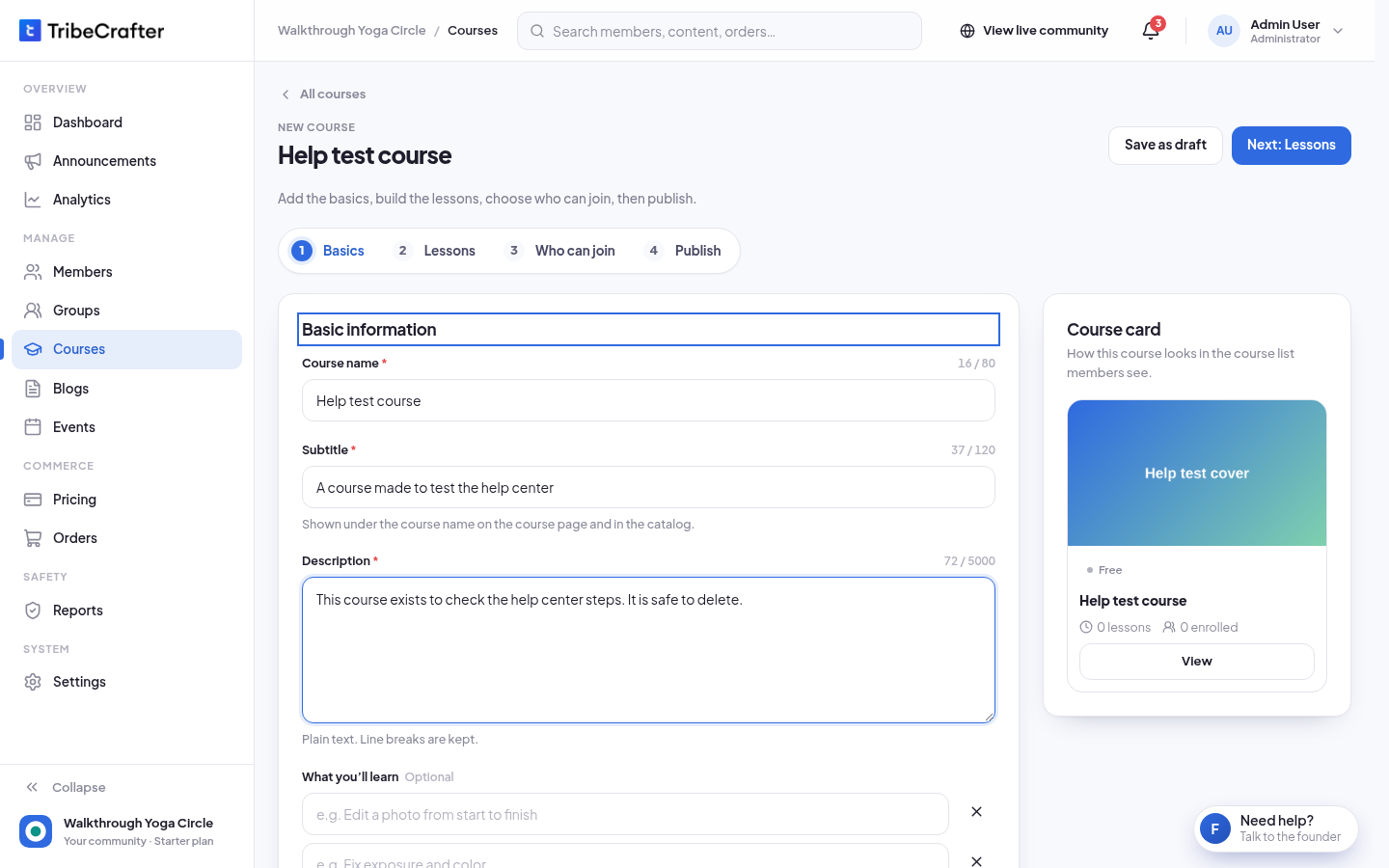
1. Basics
- In Studio, go to Courses and click Create course.
- Fill in Course name (3 to 80 characters), Subtitle (up to 120) and Description (20 to 5,000).
- Under Cover image, click Click to upload a cover image. A cover is needed even for a draft.
- Optional: under What you'll learn, click Add a point for each thing members learn (up to 8).
- Optional: under Instructors, pick yourself or any member. Their photo, title and bio come from their member profile.
- Click Next: Lessons.
2. Lessons
Lessons sit in sections, like chapters. Studio starts a section called "Section 1" for you.
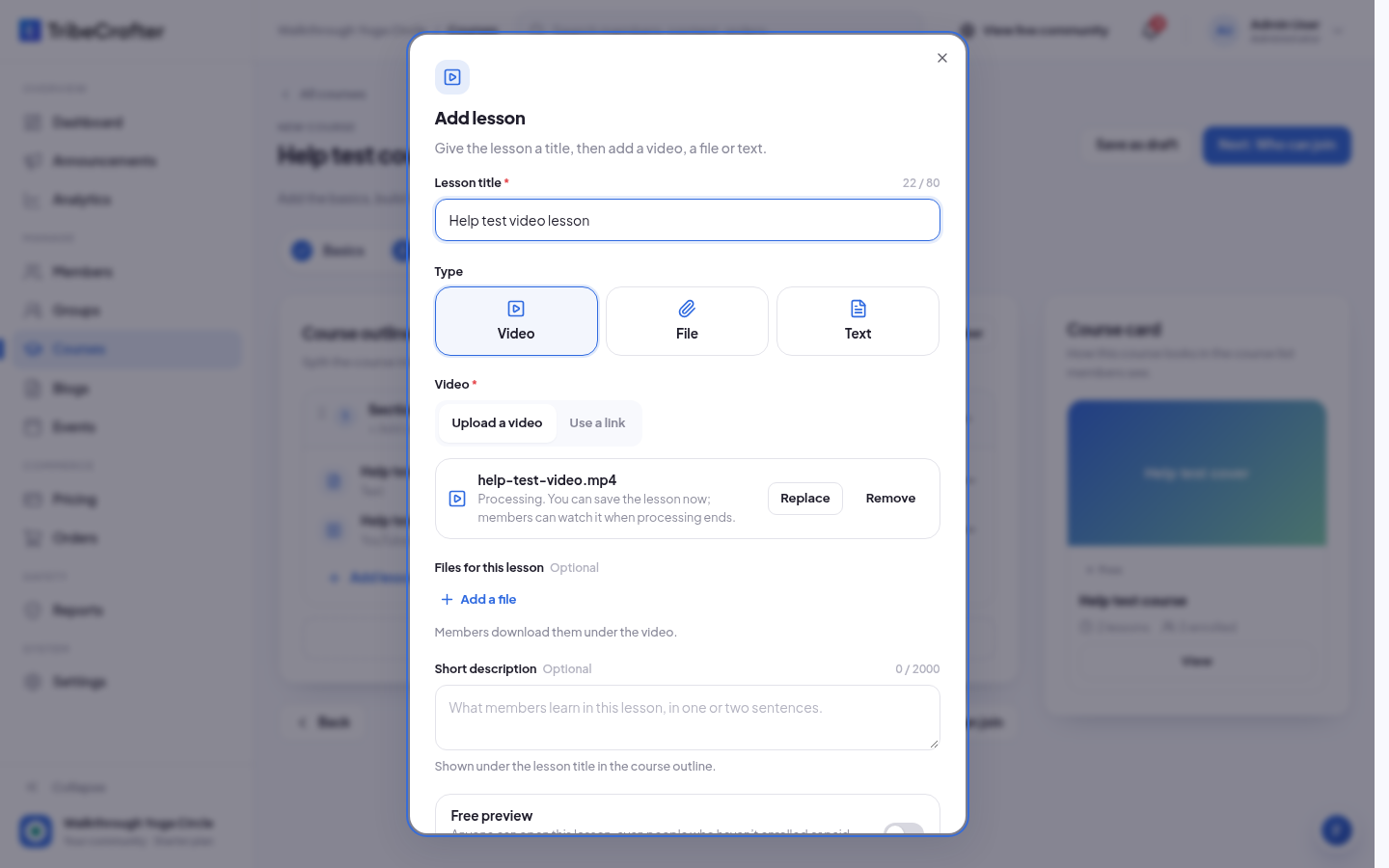
- Click Add a lesson.
- Fill in Lesson title (up to 80 characters).
- Pick a Type:
- Video: click Upload a video to upload a file, or Use a link and paste a YouTube, Vimeo or Wistia link. Paste the link, not embed code.
- File: click Add a file. Members download the files from the lesson. Add at least one.
- Text: write in Lesson content (plain text, up to 50,000 characters).
- Optional: turn on Free preview. Anyone can then open this lesson, even people who haven't enrolled or paid.
- Click Add lesson.
To add more structure, click Add section and give it a title (up to 80 characters). Use ⋯ on a section or lesson to rename it, move it or delete it. On a computer you can also drag them.
To bulk add videos, click Upload videos under a section. Each video becomes a lesson named after its file. "03-your-first_night.mp4" becomes "Your first night".
Click Preview as member to see the outline the way a member who hasn't enrolled sees it.
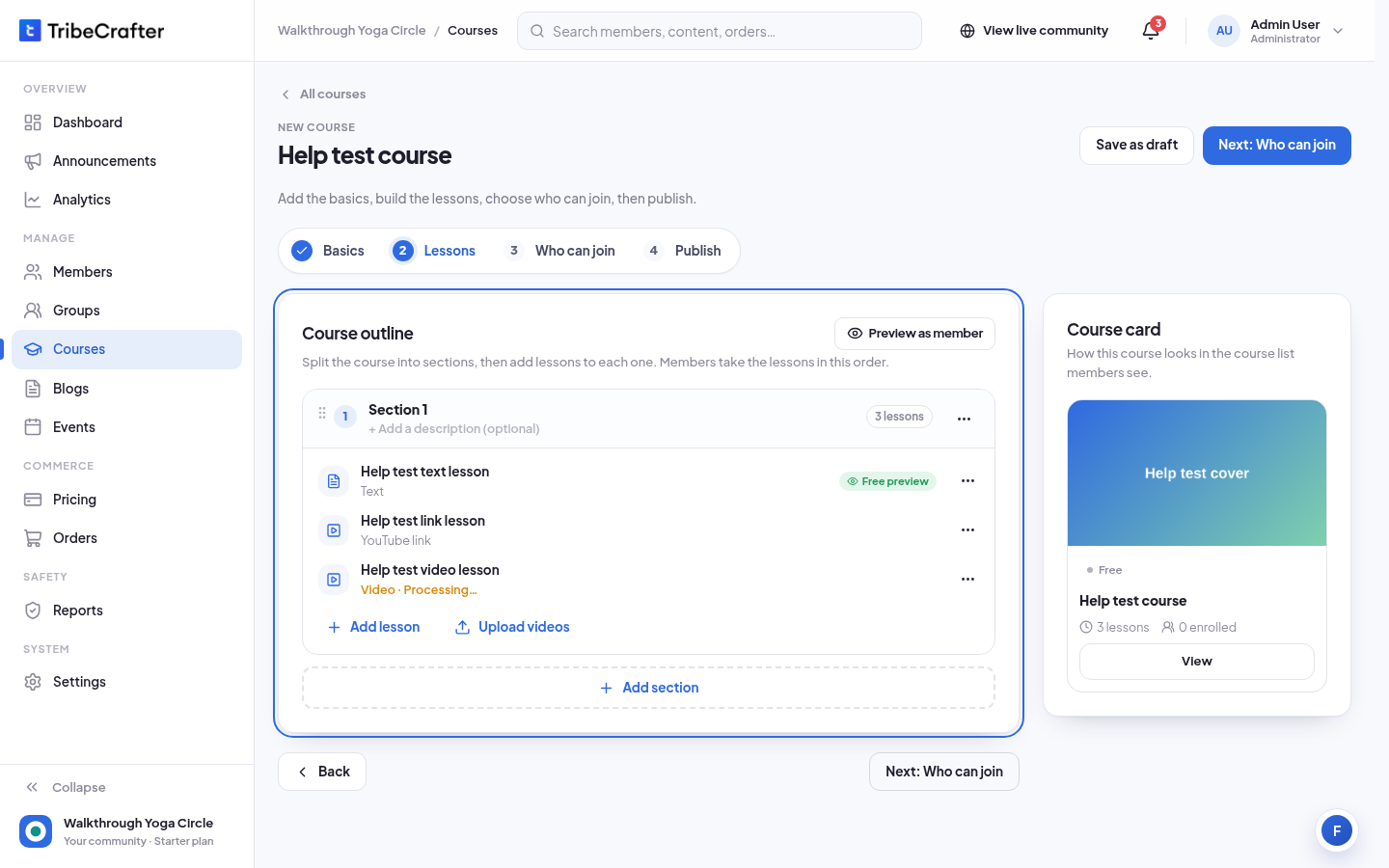
Nothing on this step is saved until you save the course.
3. Who can join
- Click Next: Who can join.
- Pick Free ("Any member can enroll with one click. No payment.") or Paid ("Members get in when they subscribe to a plan or buy a product.").
- For Paid, pick plans in Subscription plans, products in One-time products, or both. You can also click Create a subscription or Create a one-time product.
4. Publish
- Click Next: Publish.
- Turn Recommended on to highlight the course. Show in Google search is on by default.
- Check the summary under Before you publish, then click Publish course. A message says the course "is live. Members can see it now."
To finish later, click Save as draft. You see "Draft saved. Members can't see it yet."
The first publish puts a post about the course in the community feed, once.
Video uploads
Uploaded videos must be MP4, MOV or WebM. The row and the popup show where the upload is:
| You see | What it means |
|---|---|
| "Uploading… 40%. You can save the lesson and keep working." | The file is uploading. Keep the tab open. |
| "Processing. You can save the lesson now; members can watch it when processing ends." | The upload is done. It is being prepared. |
| "Video · 6:40" (row) or "Ready · 6:40" (popup) | Members can watch it. |
| "Upload failed at 40%. The connection dropped; try again." | Click Retry. It goes on from where it stopped. |
| "The upload didn't finish. Use Replace to upload the video again." | The tab closed during upload. Click Replace and pick the file again. |
| "We couldn't process this video. Choose an MP4, MOV or WebM file." | Click Choose a new file. |
- The upload runs in this browser tab. If you close the tab, the upload is lost.
- You can save the course while a video uploads. The toast tells you how many are still uploading.
- A video that failed to upload blocks publishing.
- The bar under the upload box shows your video storage, for example "Video storage: 18.2 GB of 50 GB used". When it is full, delete videos you no longer need, upgrade your plan, or use a YouTube or Vimeo link.
- Deleting a lesson or section with an uploaded video deletes the video too, when you save.
Free and paid courses
- Free: any member enrolls with one click.
- Paid: members get in through a plan or product that includes the course. Subscribers enroll with one click while they stay subscribed. Buyers of a product are enrolled automatically.
There are no free plans or products. To give someone a paid course without payment, use Give access on their member page.
If you are a Course Manager
You can build and edit any course, but you can't pick plans or products. For a paid course:
- Save the course as Paid.
- On the Who can join step, click Ask an admin to publish. You see "Sent to the community admins. You'll get a notification when you can publish."
- Every Community Admin gets a notification. The course shows Waiting for an admin.
- When an admin adds the course to a plan or product, you get a notification. Then publish it yourself.
Course Managers can't delete courses or unenroll members.
Change a course later
Open the course and click Edit. Use the status menu next to Save changes to unpublish or archive it.
- You can't move a course back to draft while members are enrolled. Archive it instead.
- If a live paid course loses its last plan or product, Studio asks if you want to stop selling it. Enrolled members keep access, but nobody new can enroll.
- If someone else changed the course after you opened it, you see "Someone changed this course after you opened it. Reload to see their changes; your edits are still on this page."
If something goes wrong
| Message | What to do |
|---|---|
| "Add a cover image." | Upload a cover. A draft needs one too. |
| "Add at least one lesson." | Add a lesson before you publish. |
| "Paste the video's link, not its embed code." | Copy the video page address, not the <iframe> code. |
| "Enter a full link that starts with https://" | Paste the whole link. |
| "N lessons have a video that didn't upload. Open them to retry or replace the video." | Open each lesson and click Retry or Replace. |
| "A paid course needs a plan or product before you publish it. Add one in Who can join, or save it as a draft." | Pick a published plan or product, or save a draft. |