Find a group, join a free one in one click, get into a paid one, and leave a group when you no longer want it.
Groups are smaller spaces inside your community. Each group has its own Feed, Members, Media and Resources.
Find a group
- In the top menu, click Groups.
- All Groups lists every group you can see. My Groups lists the groups you are in.
- Use Access to filter, and Sort to change the order.
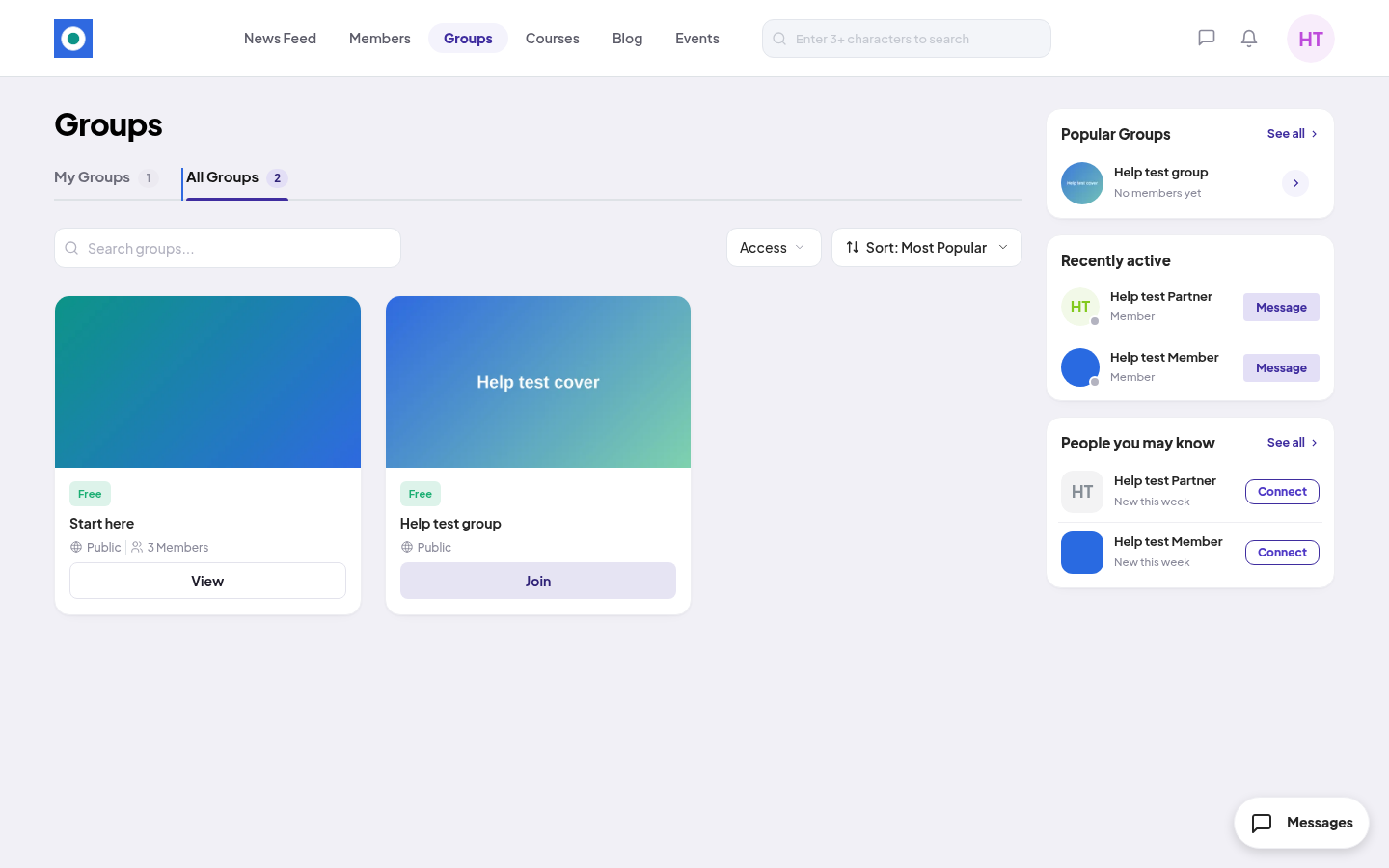
Each card shows Free or Premium, and Public or Private:
| Label | What it means |
|---|---|
| Free, Public | Anyone in the community can join. |
| Premium, Private | You need a plan or a product that includes this group. |
Join a free group
- Open the group.
- Click Join for free. You see "You’ve successfully joined the group!"
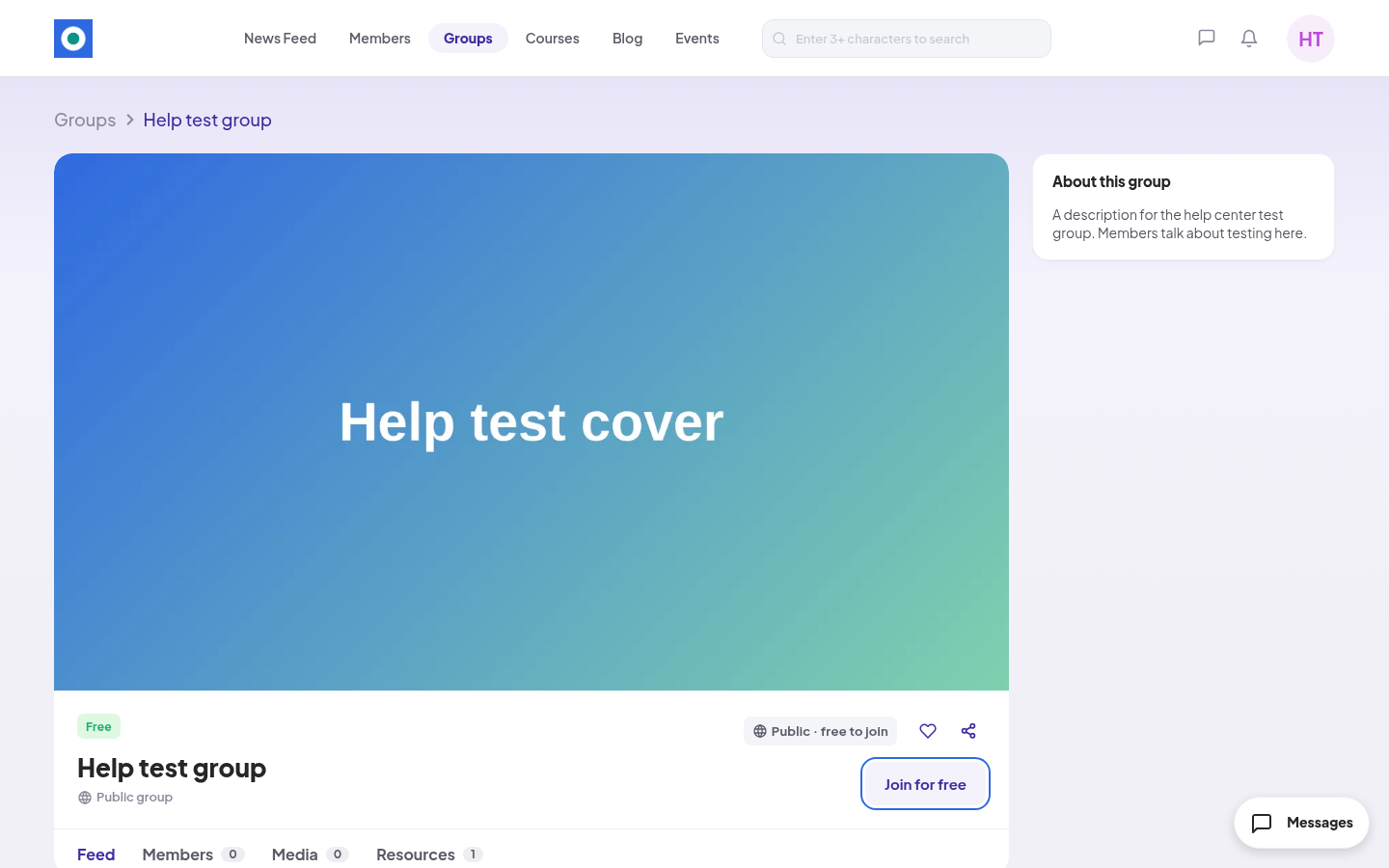
The button changes to Joined. You can now post in the group's Feed.
Some free groups add you by themselves when you finish onboarding. You find them under My Groups.
Get into a paid group
- Open the group. The button says Get Access.
- Click Get Access. A window lists the plans and products that include the group.
- Pick one. A product goes to your cart. A plan starts a subscription, and it replaces any plan you have now.
See Buying a product and Subscribing to a plan.
If your access to a paid group ends, the button says Renew Access.
Leave a group
- Open the group.
- Click Joined, then click Leave Group.
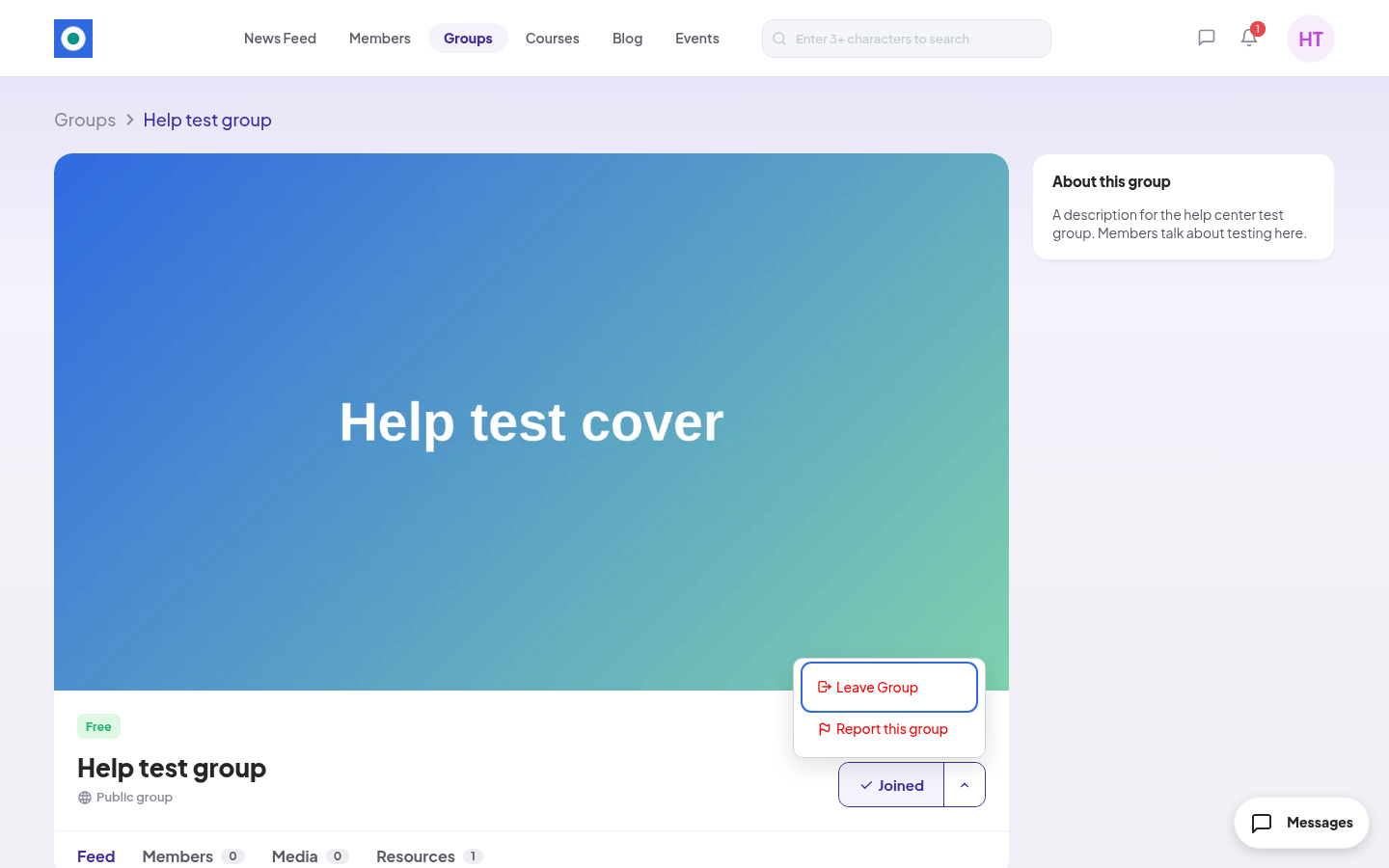
- In "Leave Group ?", click Leave. You see "You’ve successfully left the group".
You no longer see the group's activity. You can join a free group again at any time.
What members can't do
- Members can't create or edit groups. Only the community team can.
- There are no group invites. You join yourself, or the team adds you.
If something goes wrong
- "Setup required" when you click a button: finish onboarding first. Click Continue setup.
- Contact Admin instead of a join button: a group admin suspended your access. Click it to write to the community team.